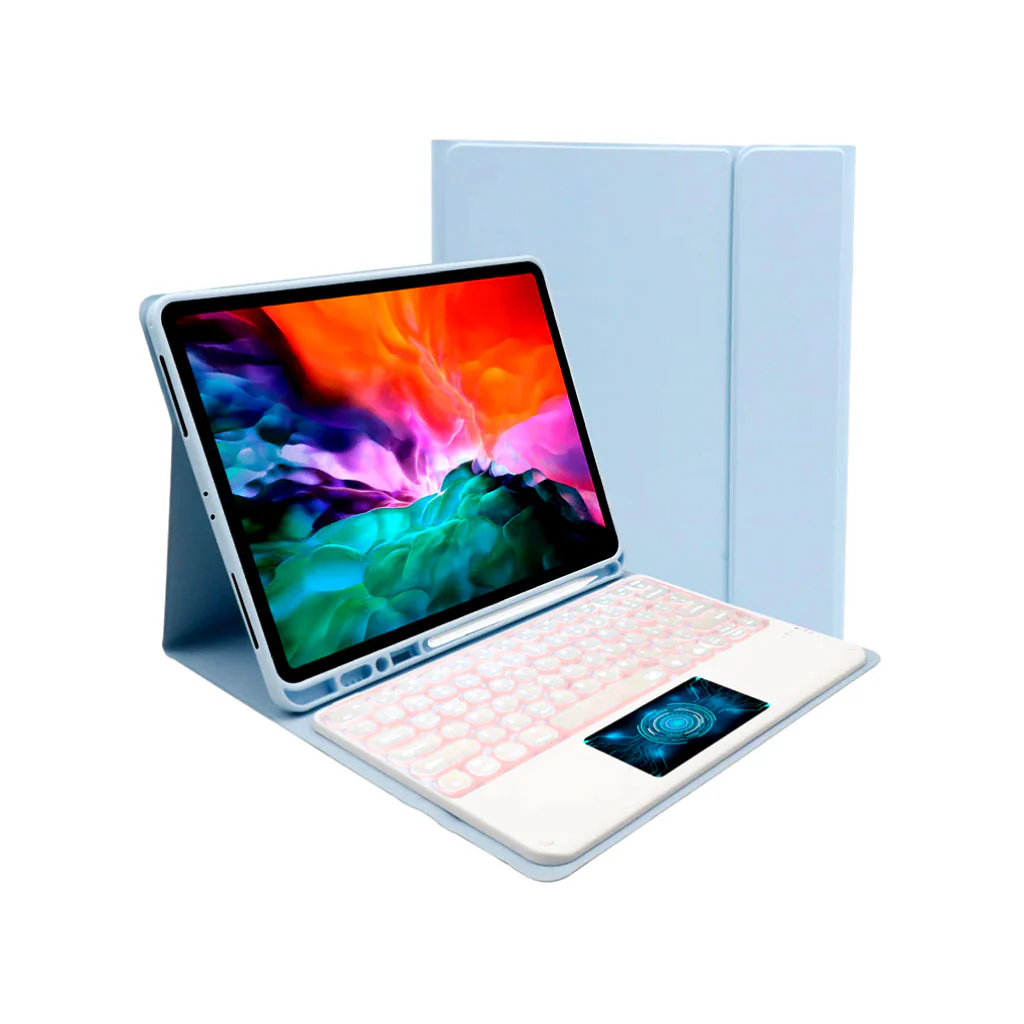
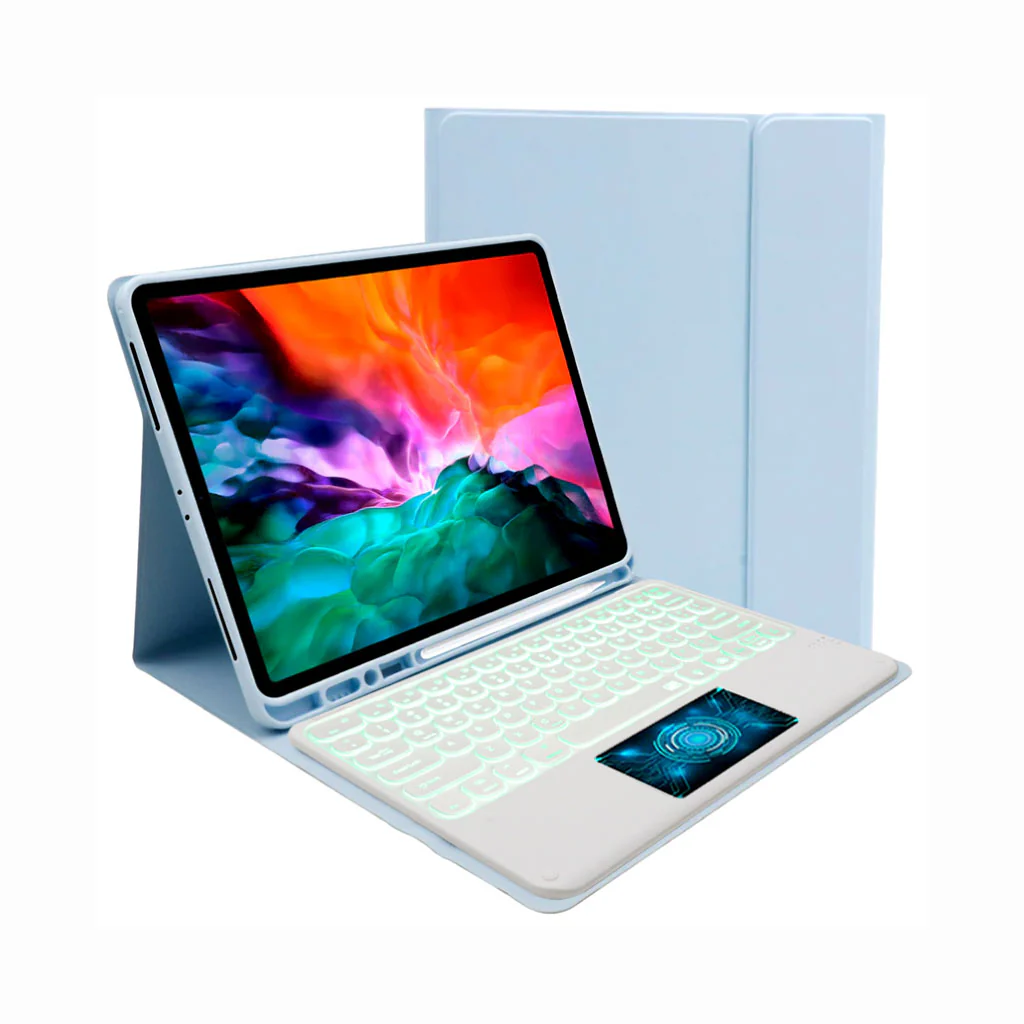
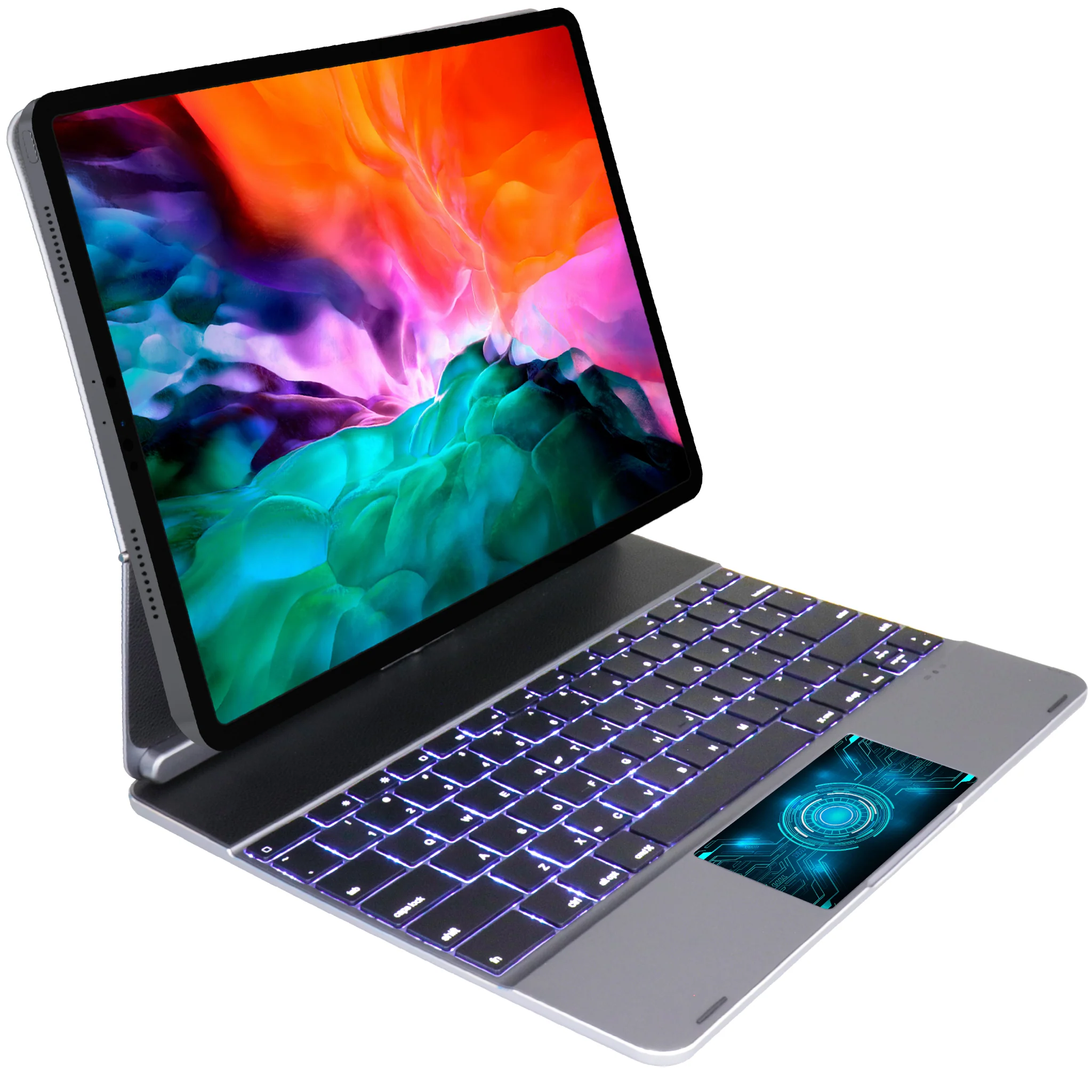
TECPHILE - 2098D Wireless Keyboard for Surface Pro 11/10/X/9/8
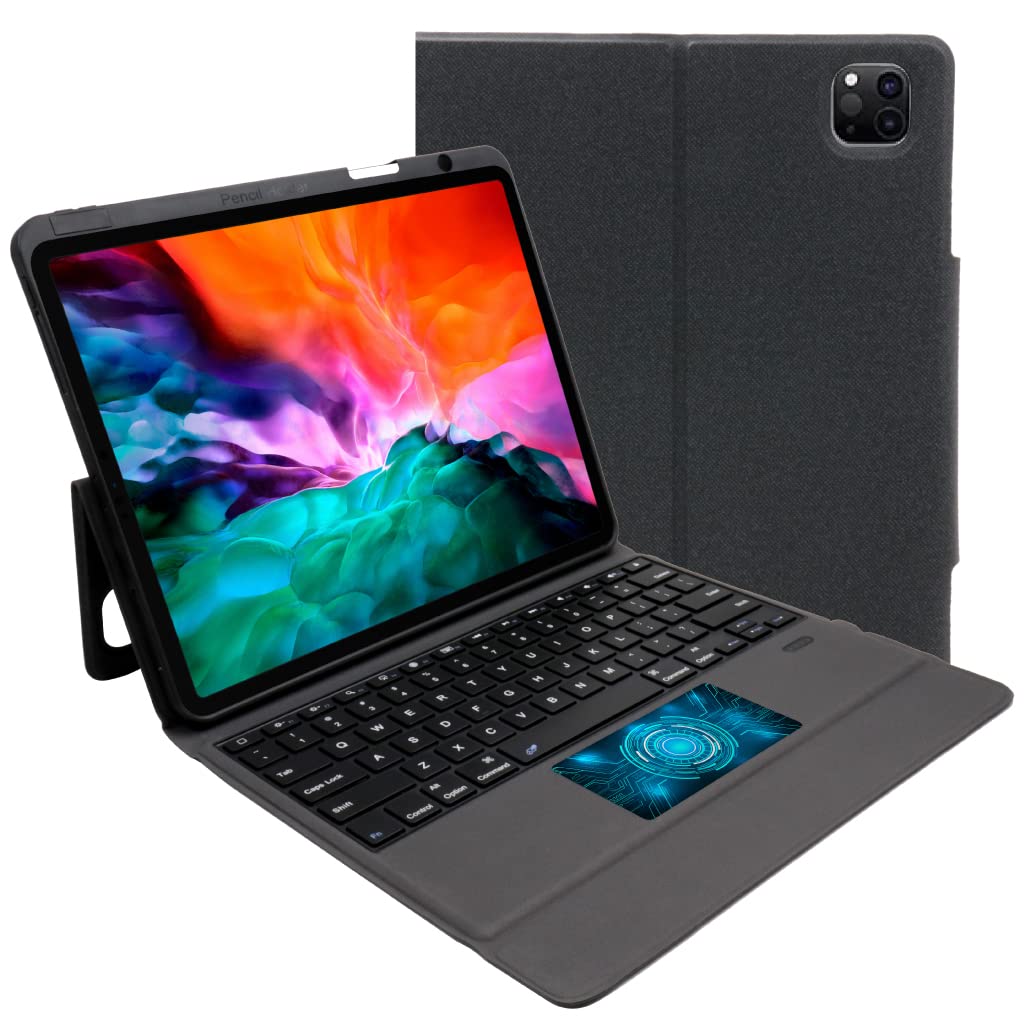
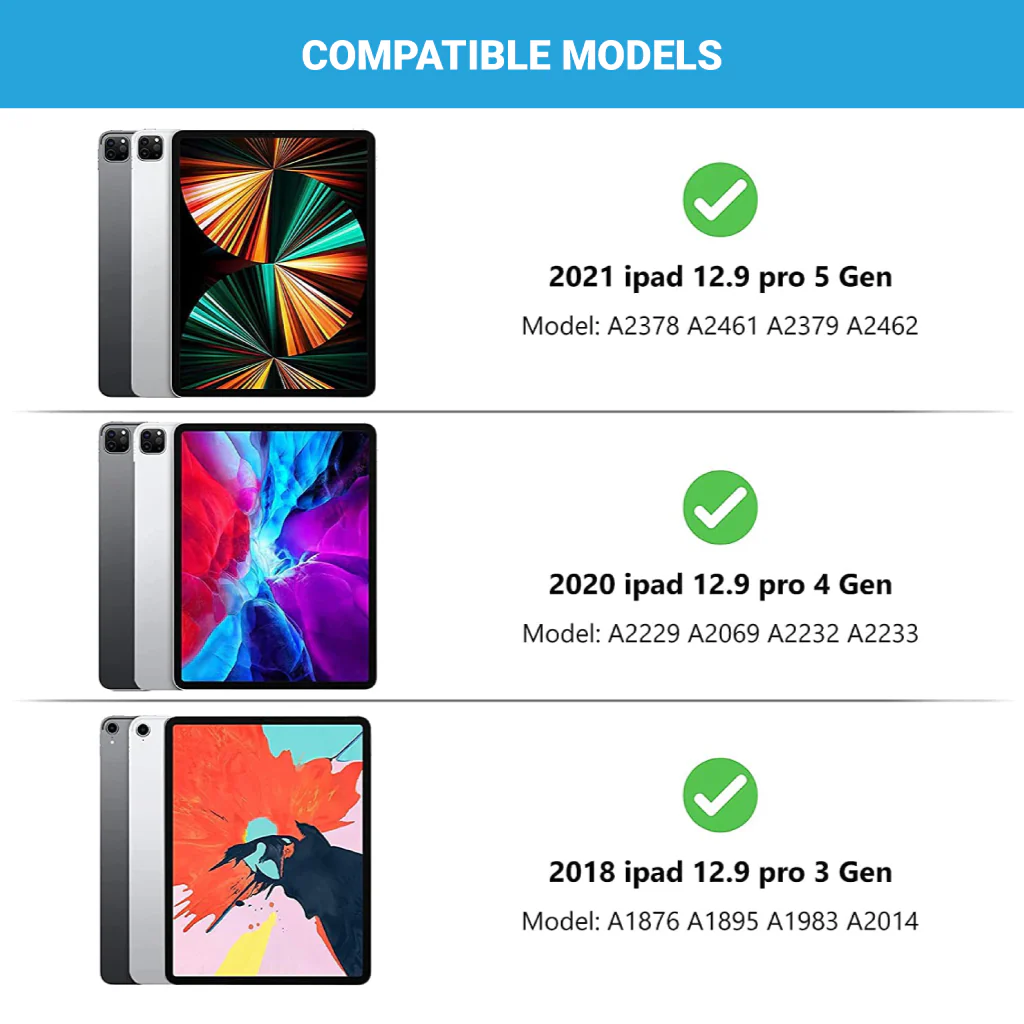
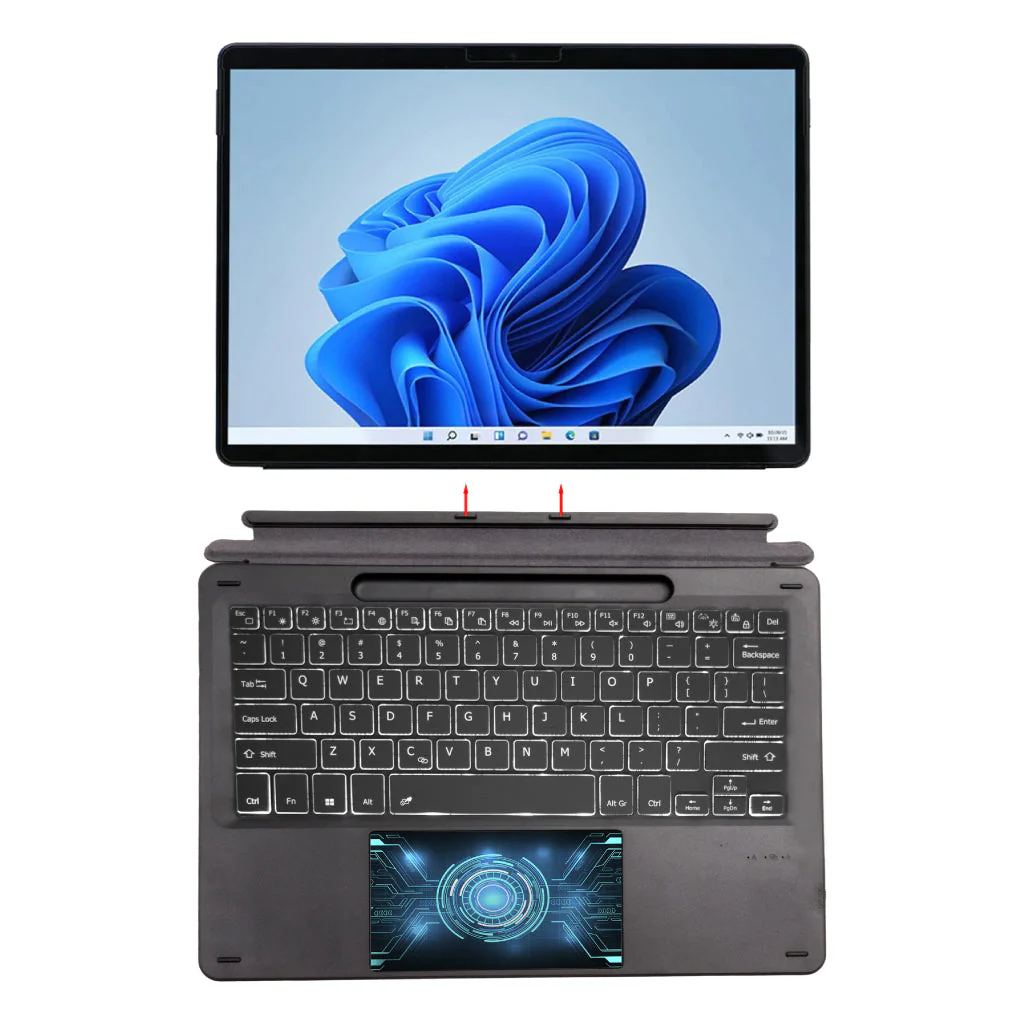
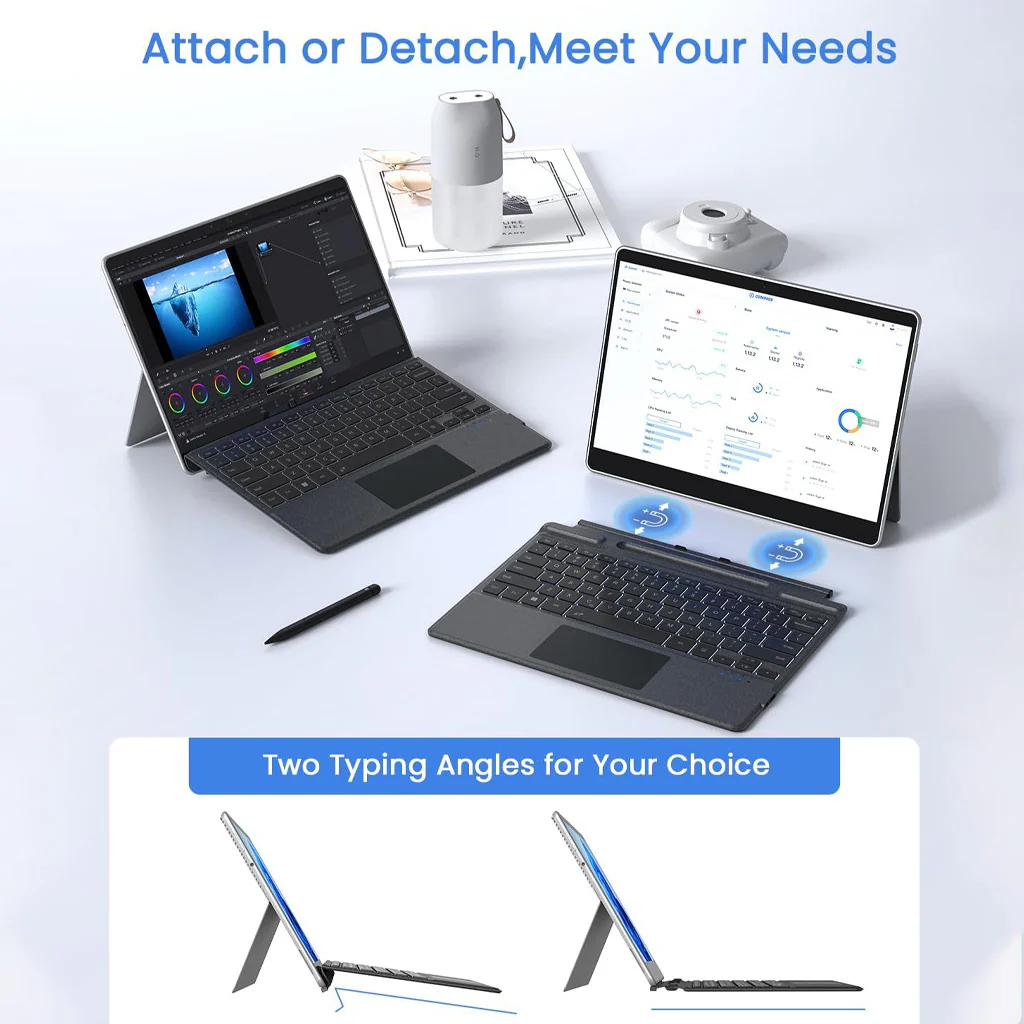
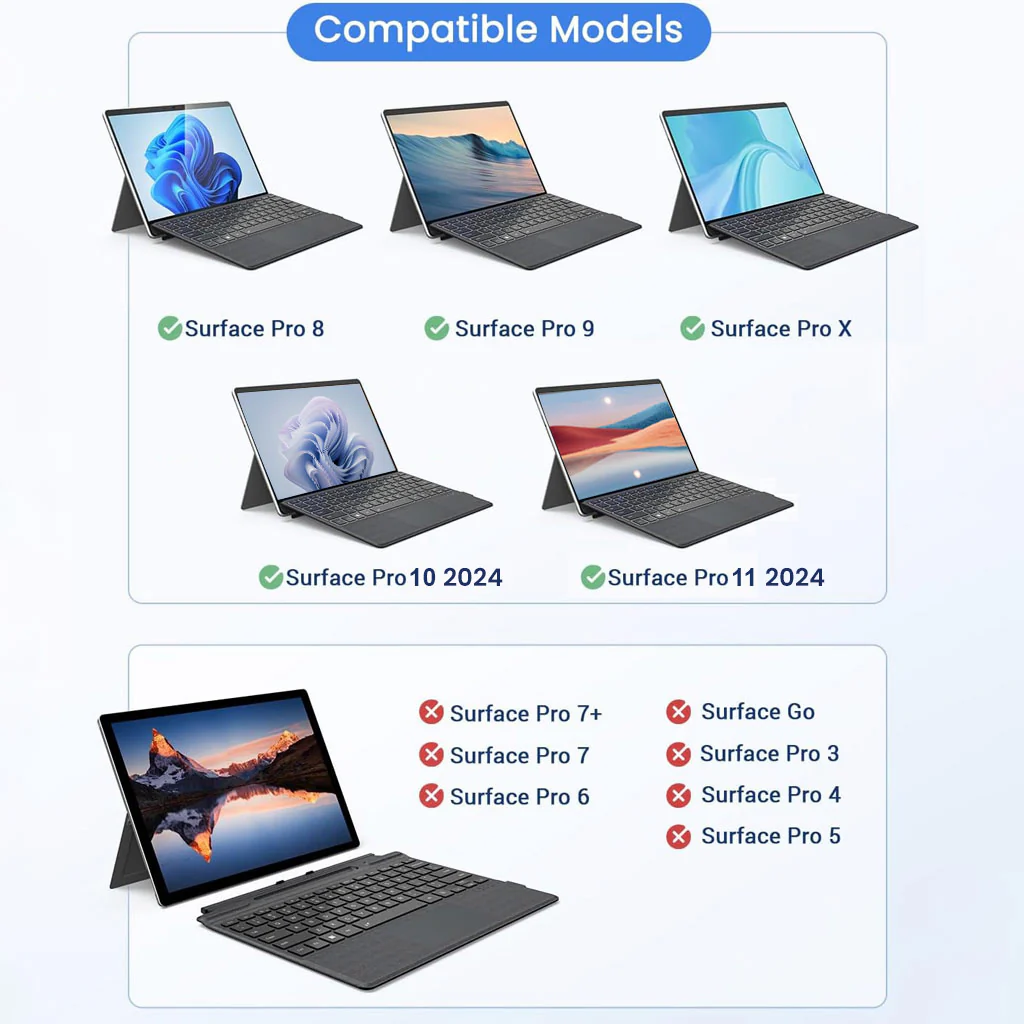
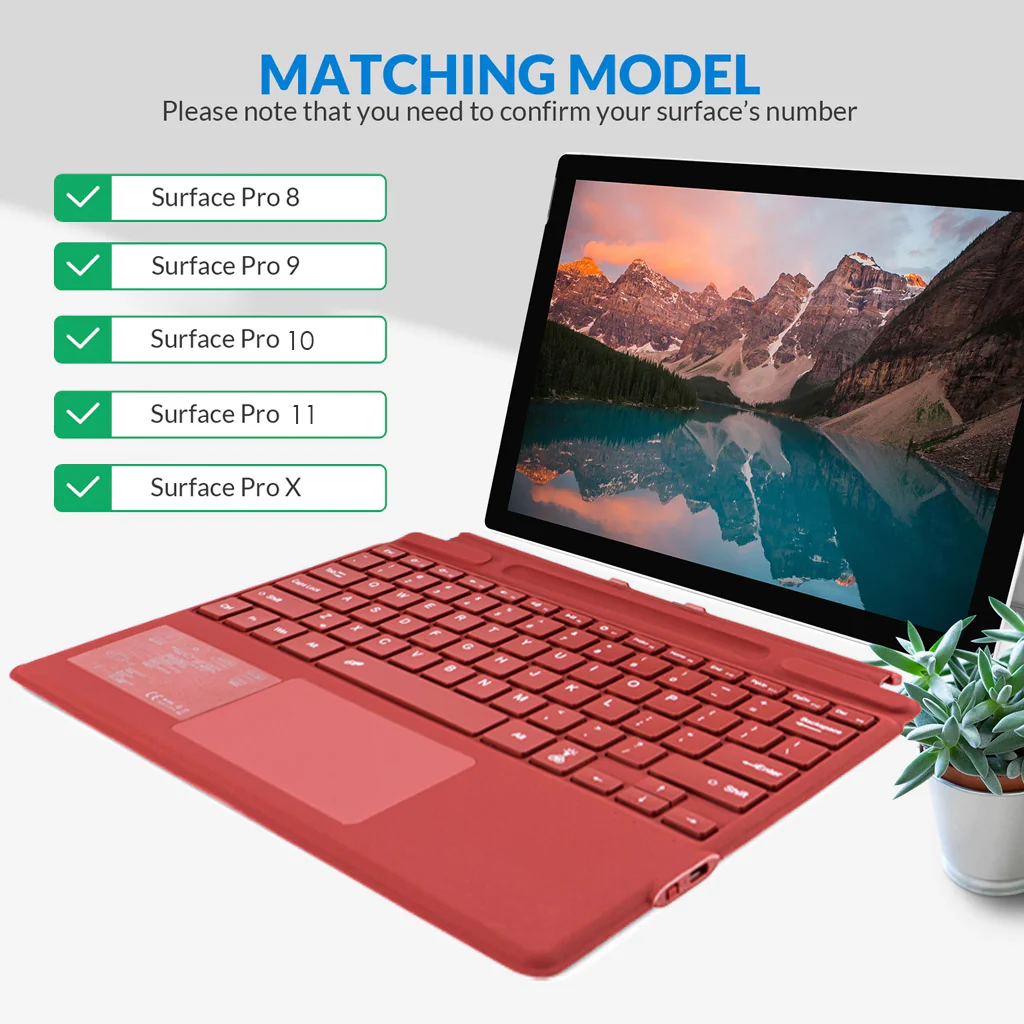
COMPATIBILITY: This keyboard Case is specifically designed for Surface Pro 11 (2024), Surface Pro 10 (2024), Surface Pro 8 (2021) and Surface Pro X (2019) Surface Pro 9 (2022). Not compatible with any other devices. The keyboard is easy to use (Stylus Pen not Included). Note: This keyboard is not compatible with Surface pro 7/6/5/4/3/2/1, Surface Go3/2/1, Surface Laptops)
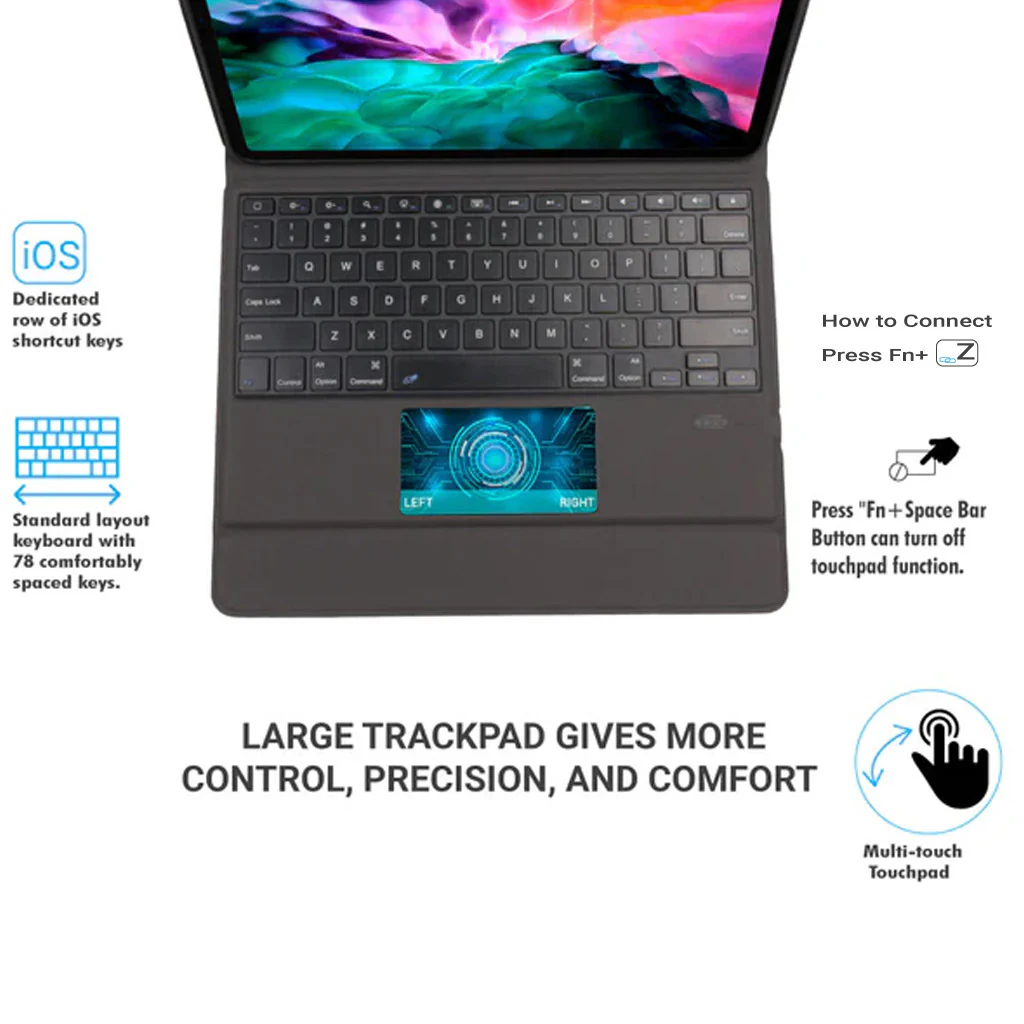
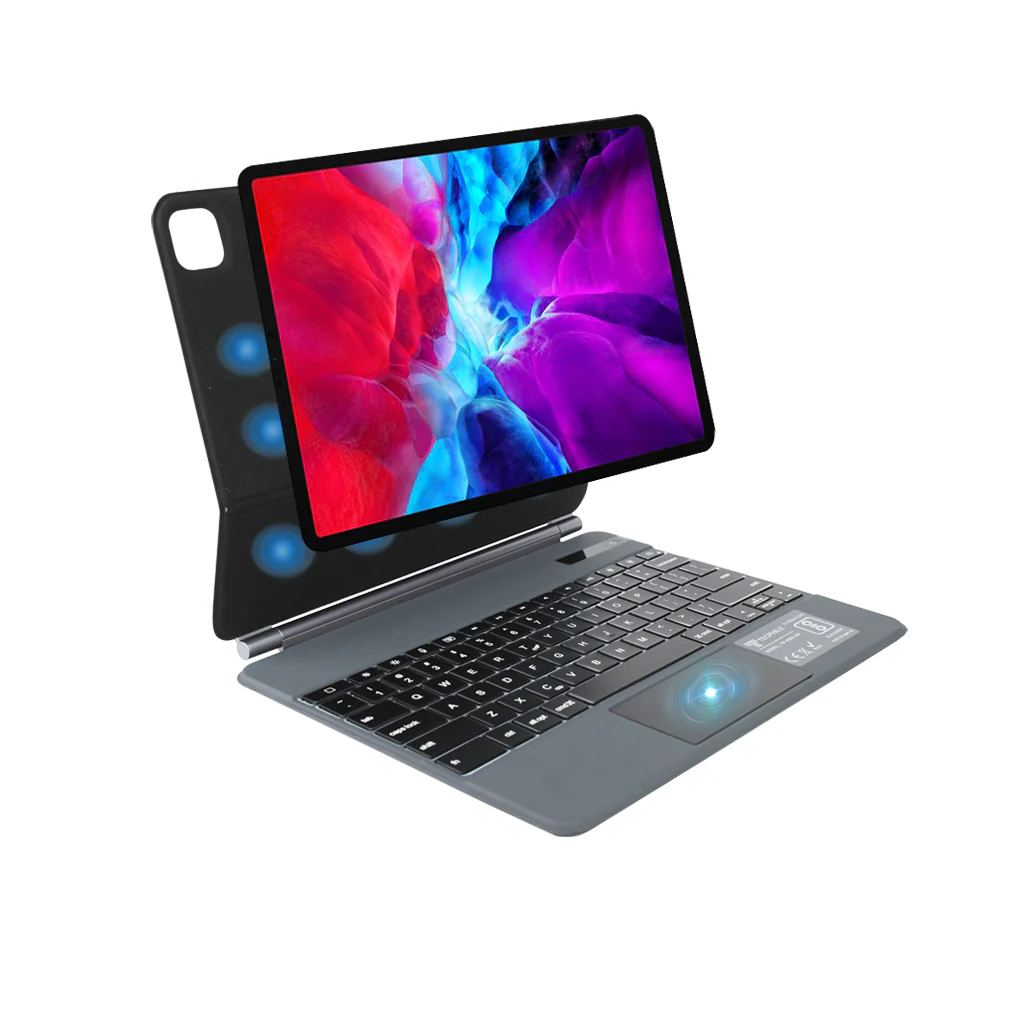
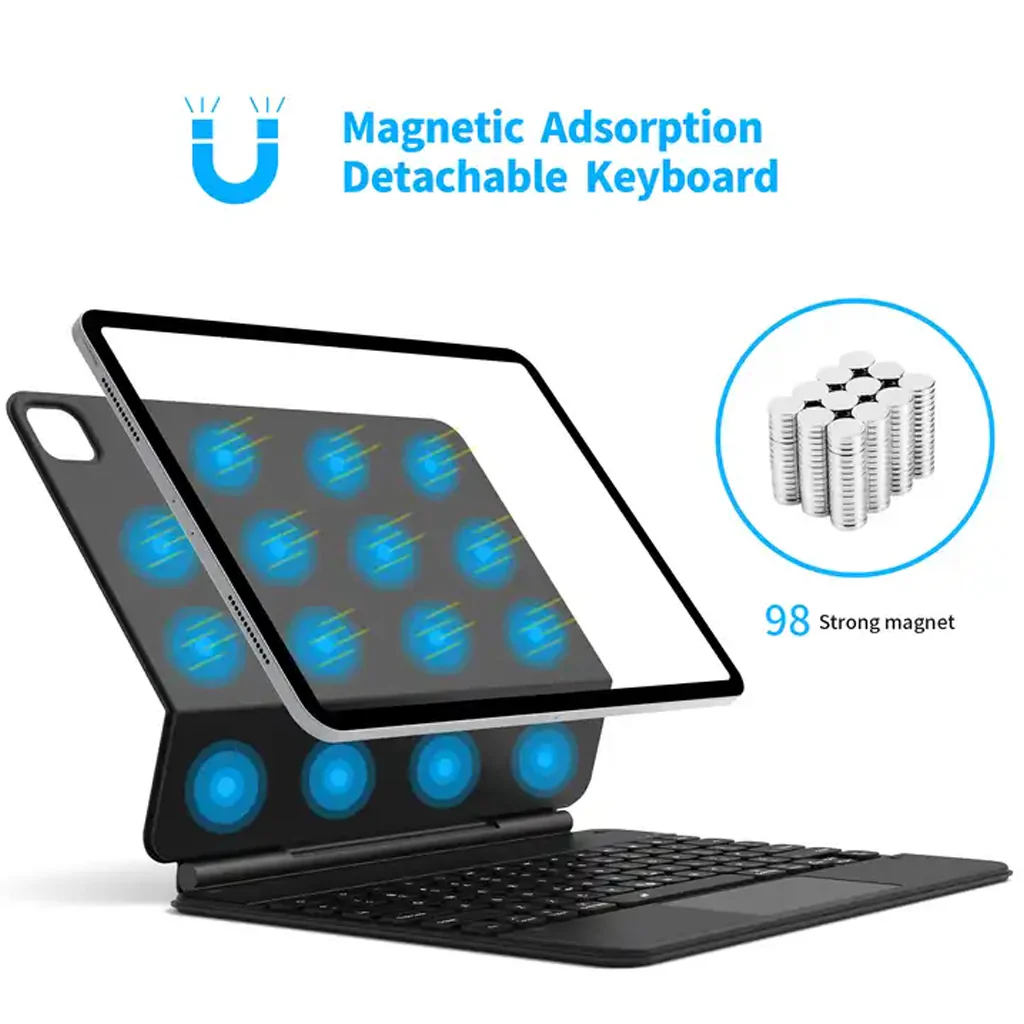
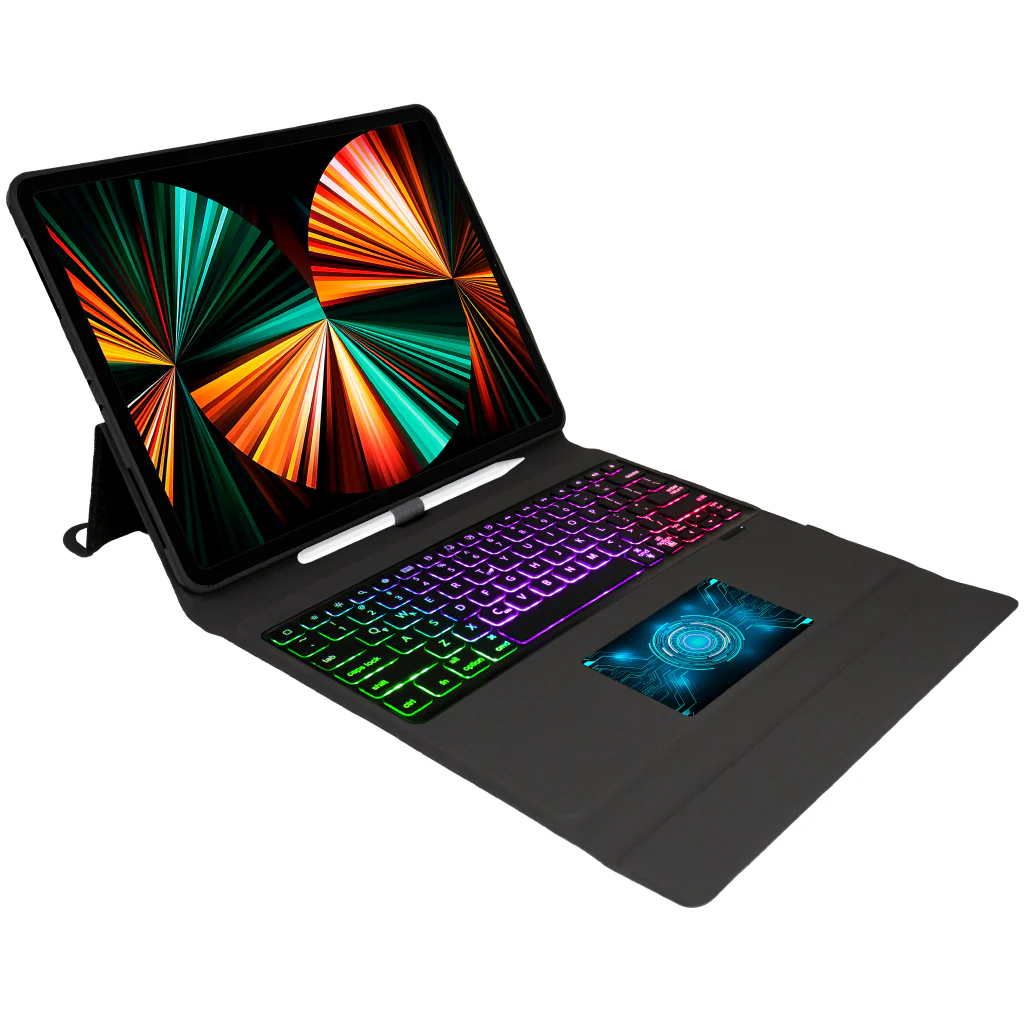
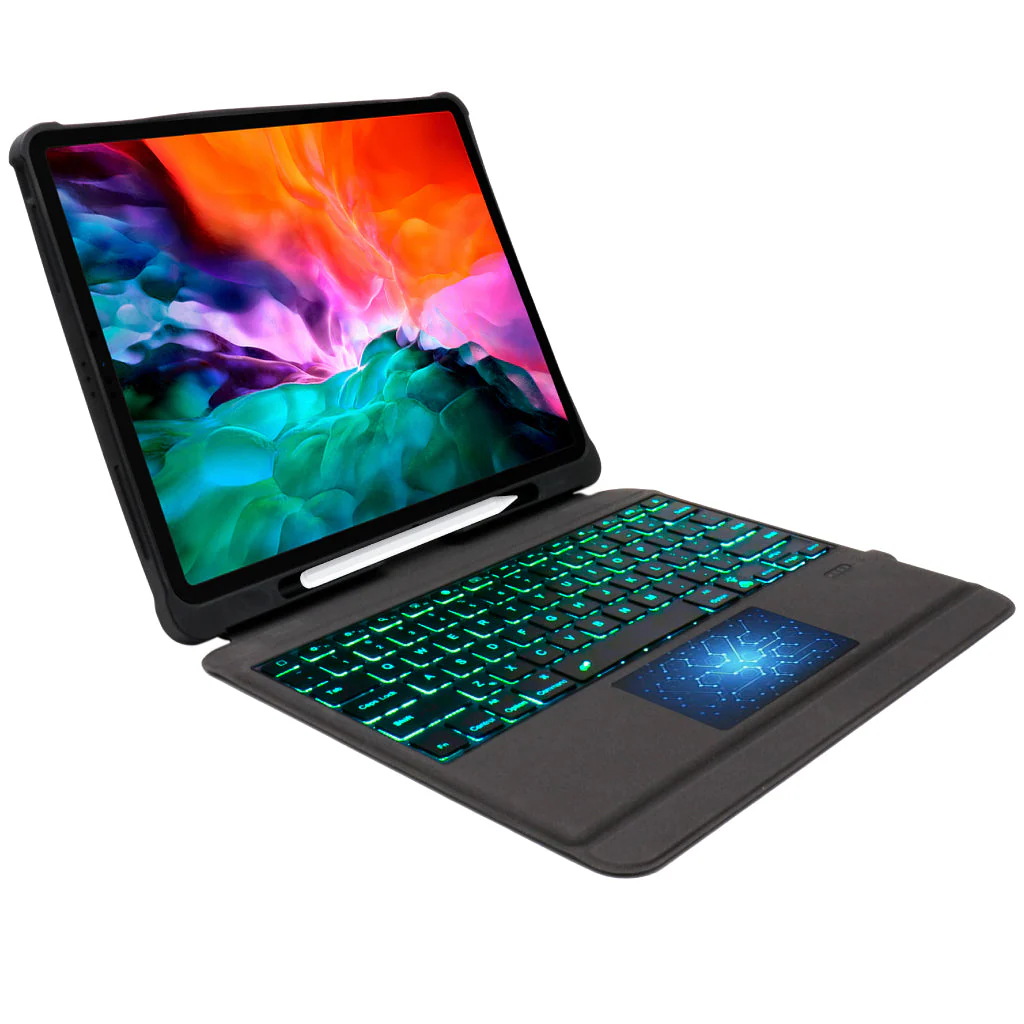
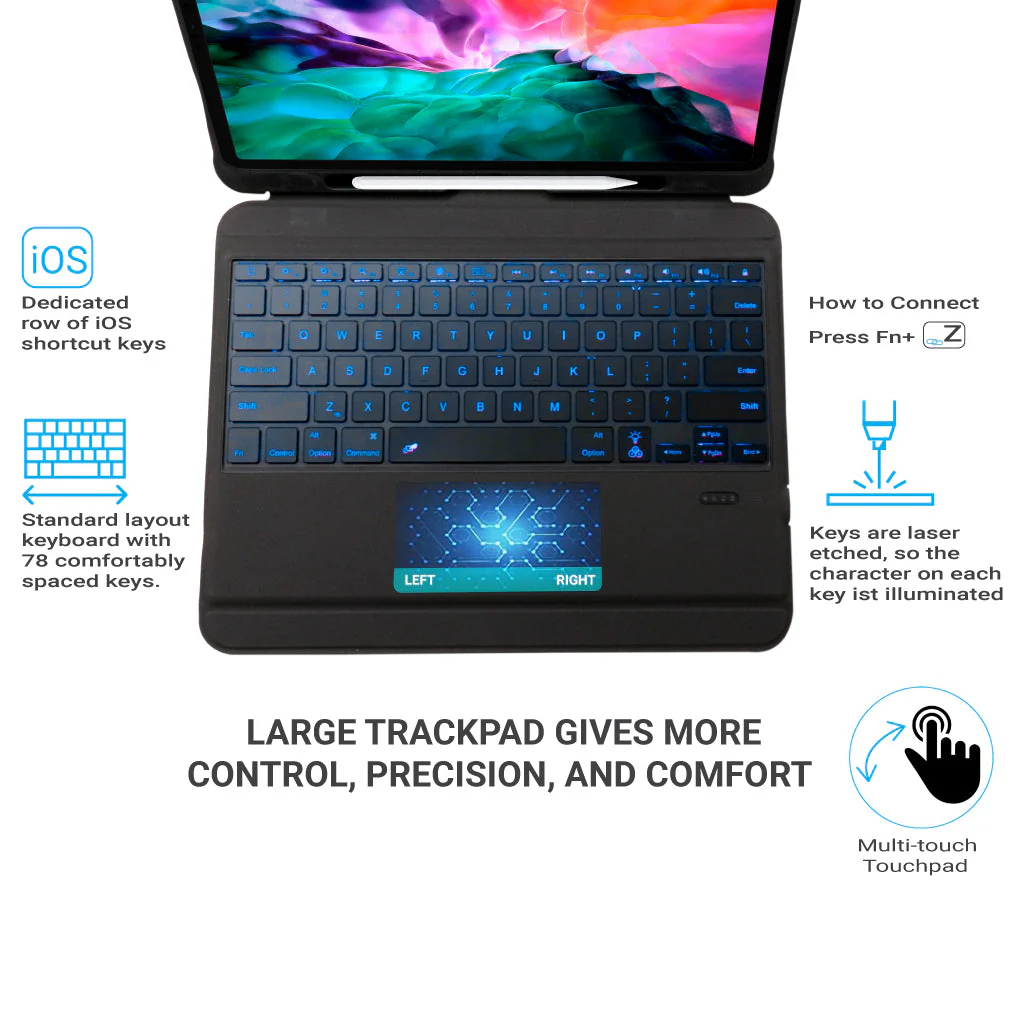
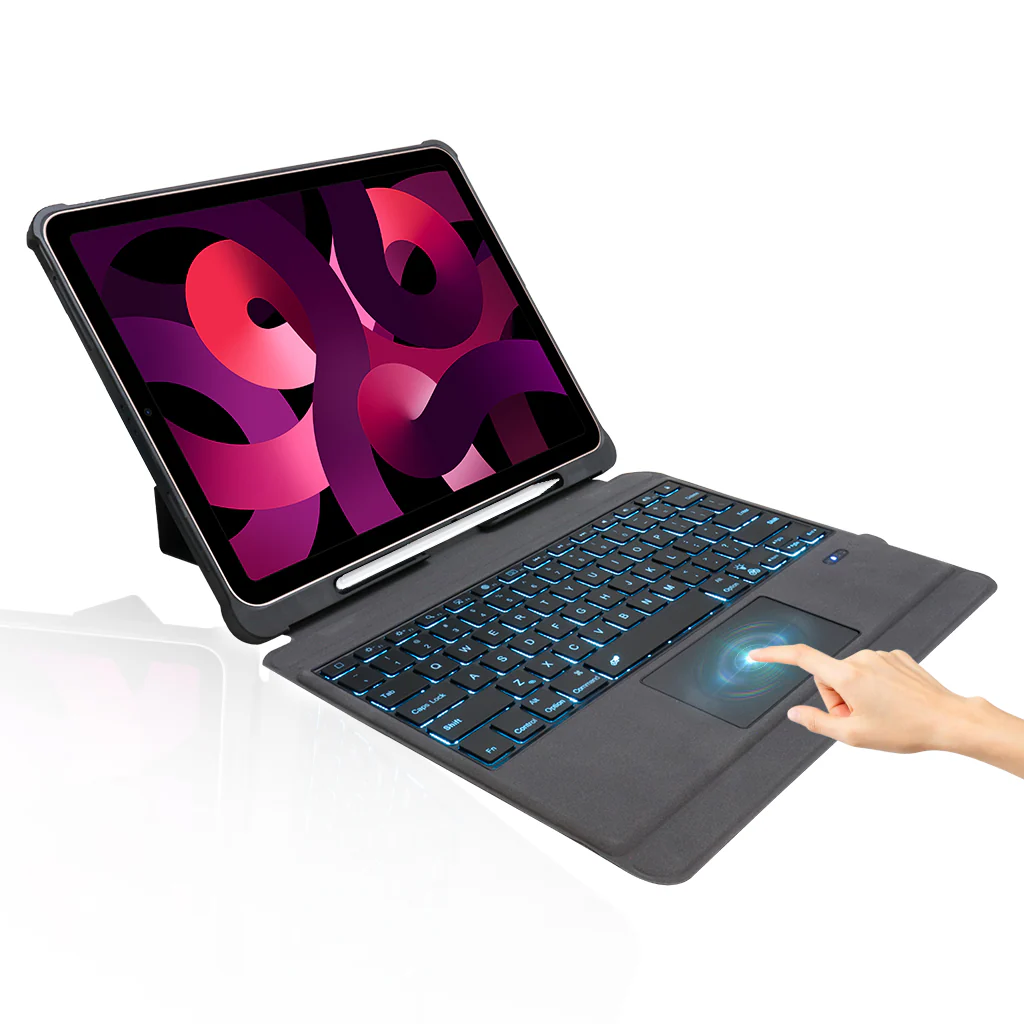
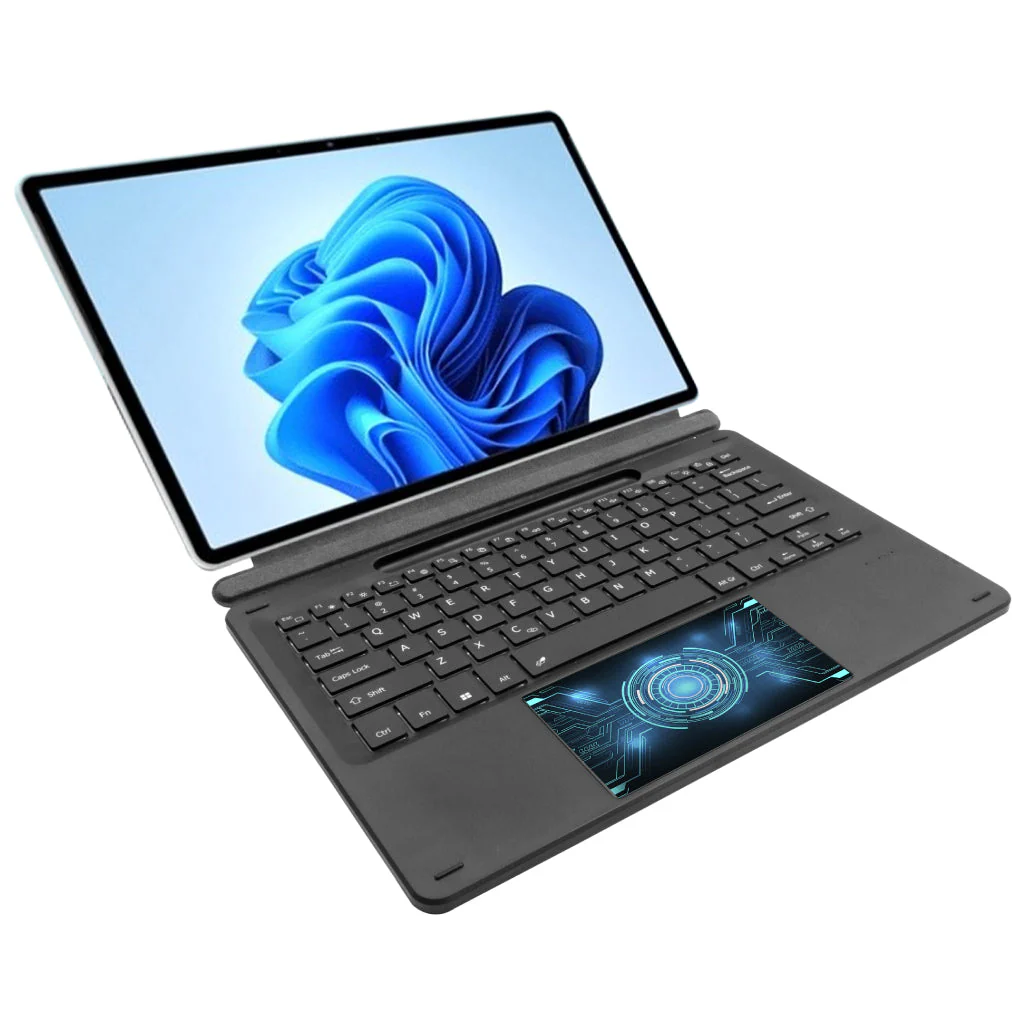
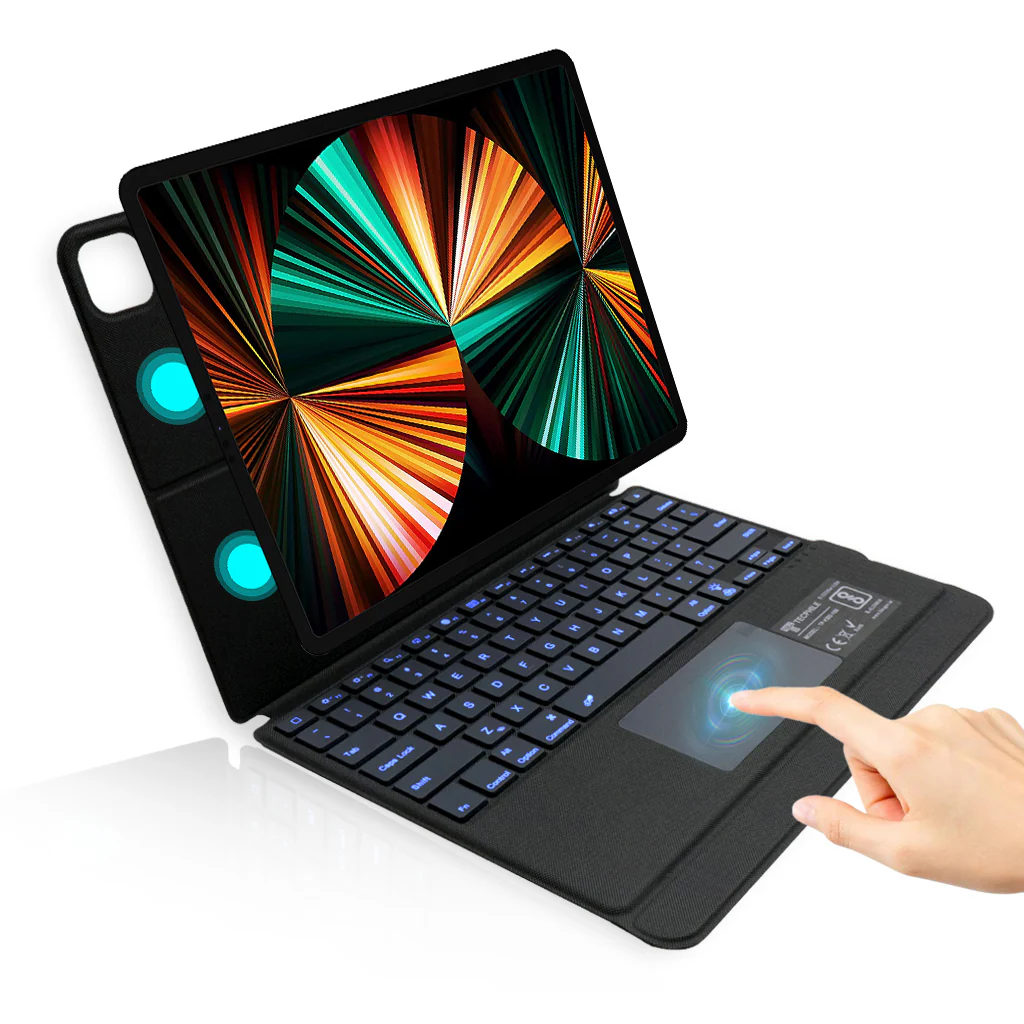
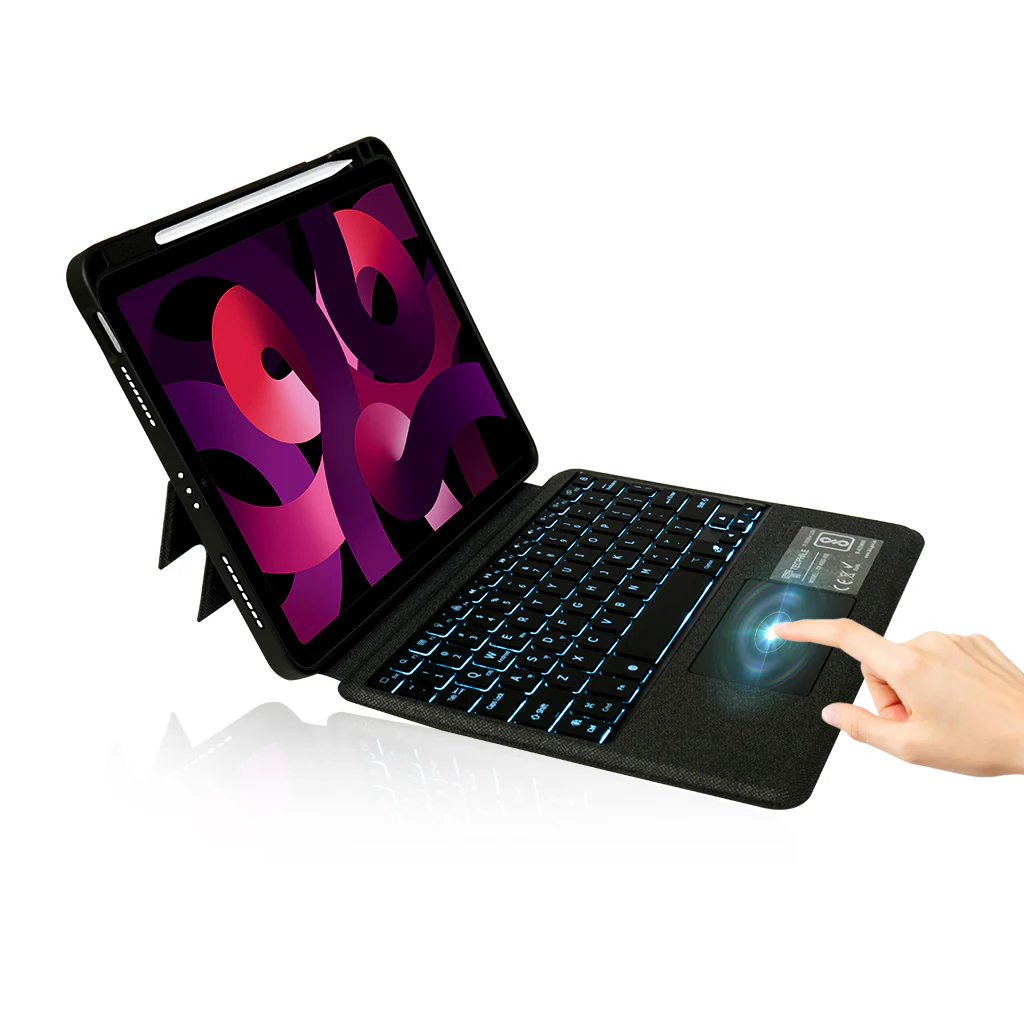
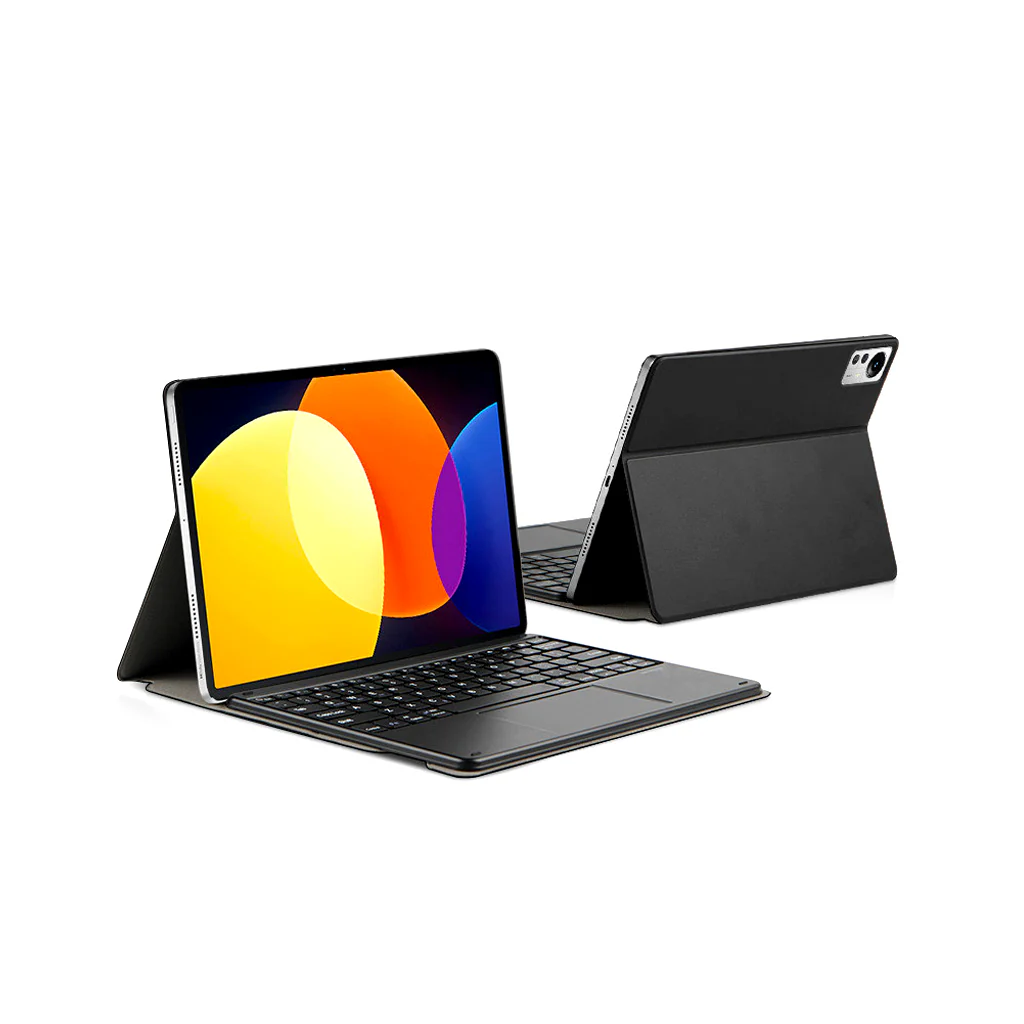
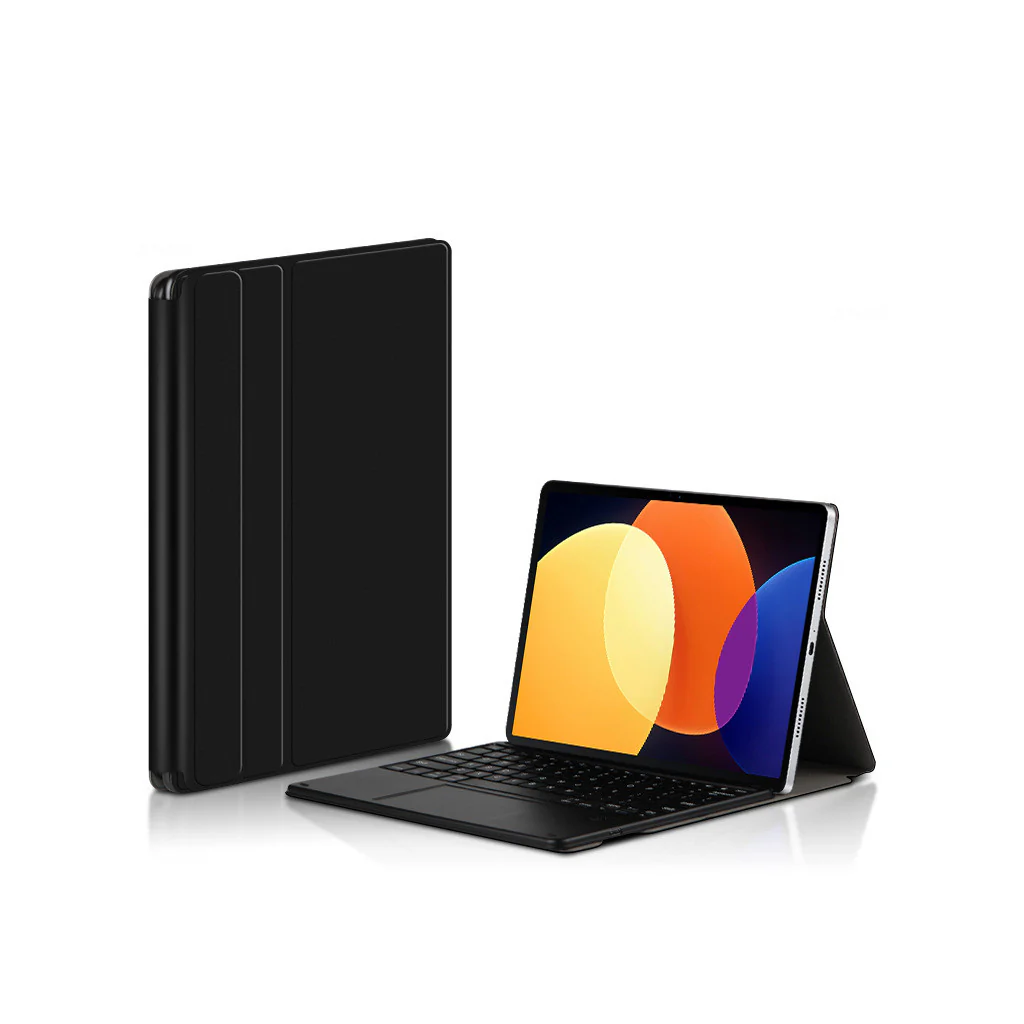
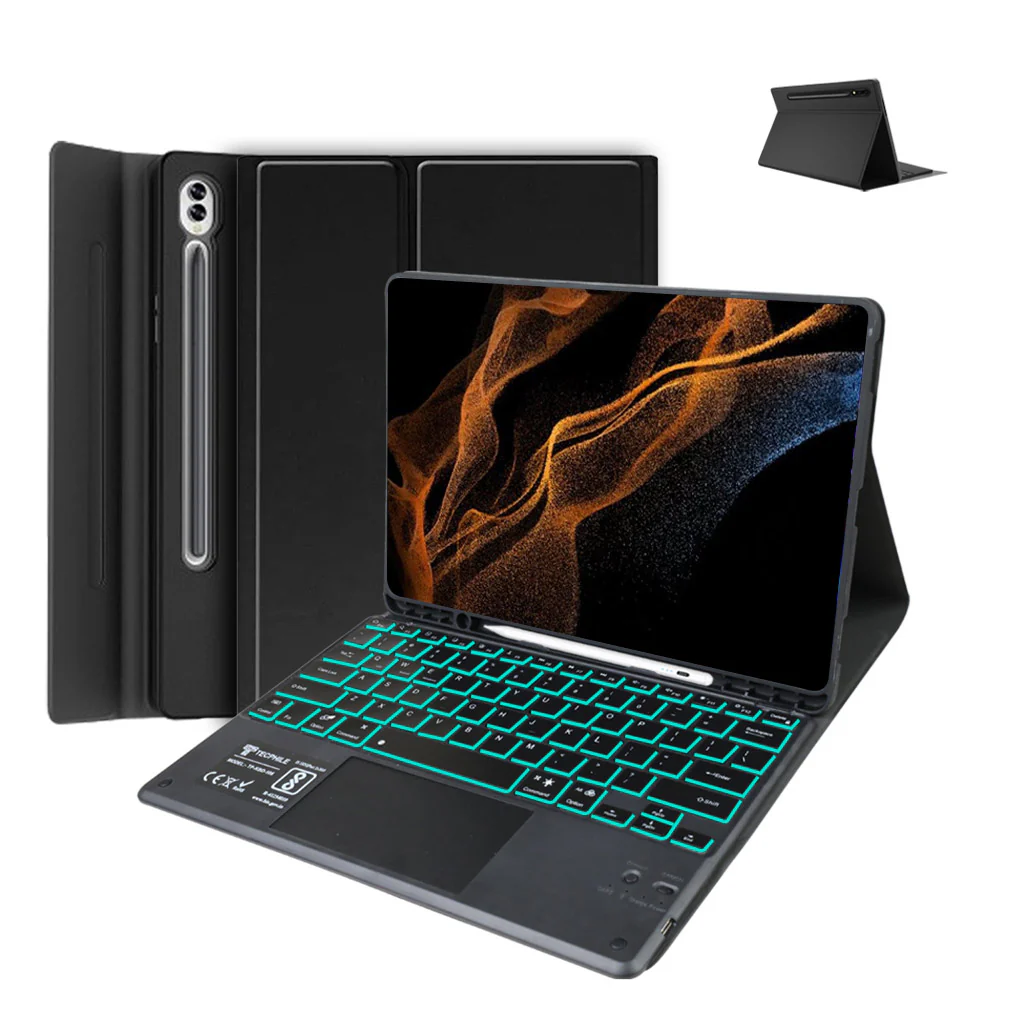
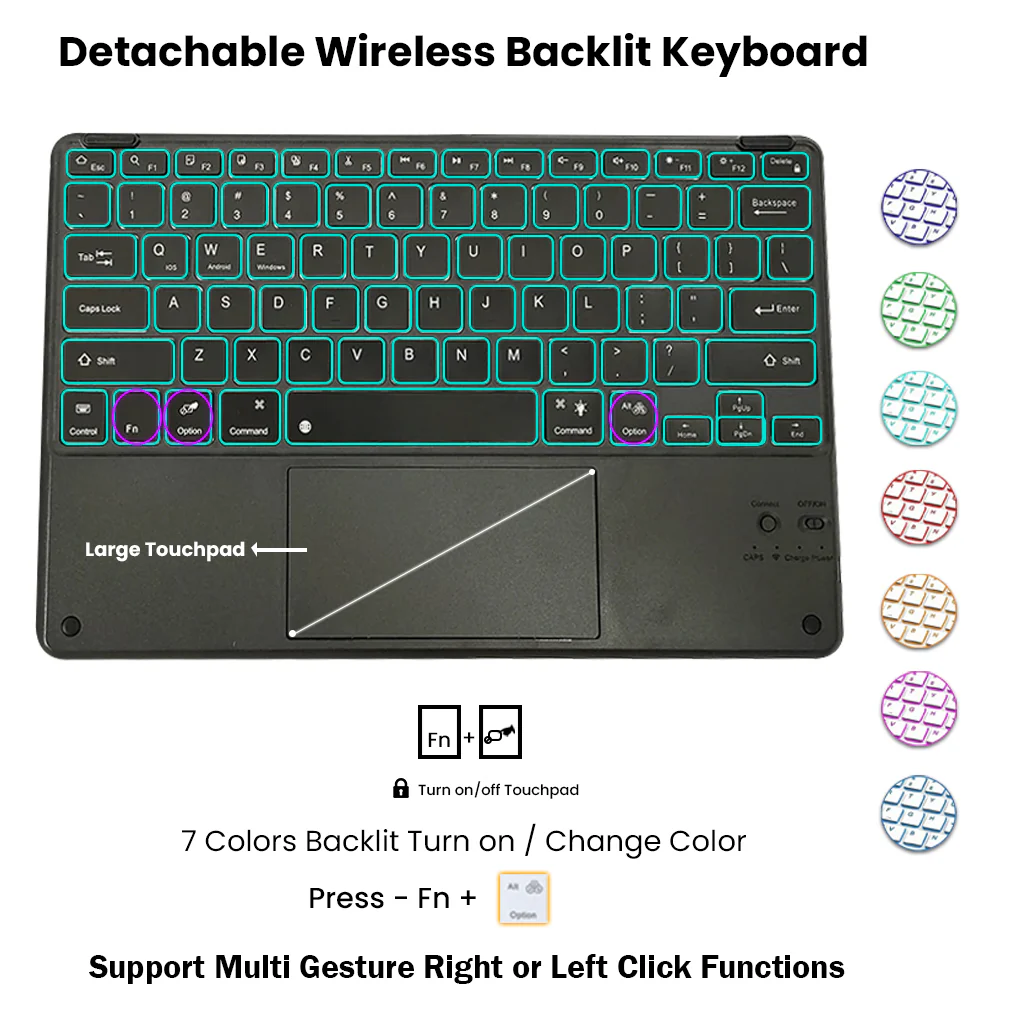
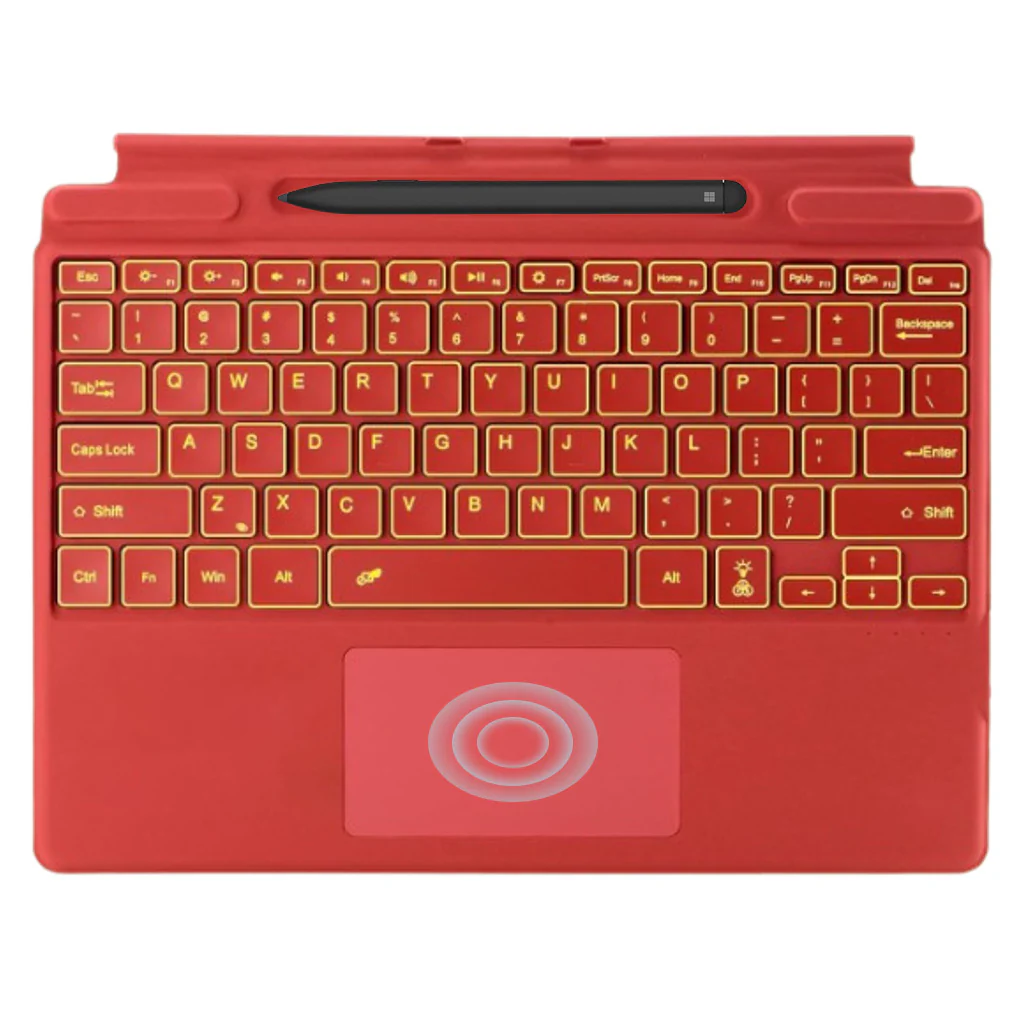
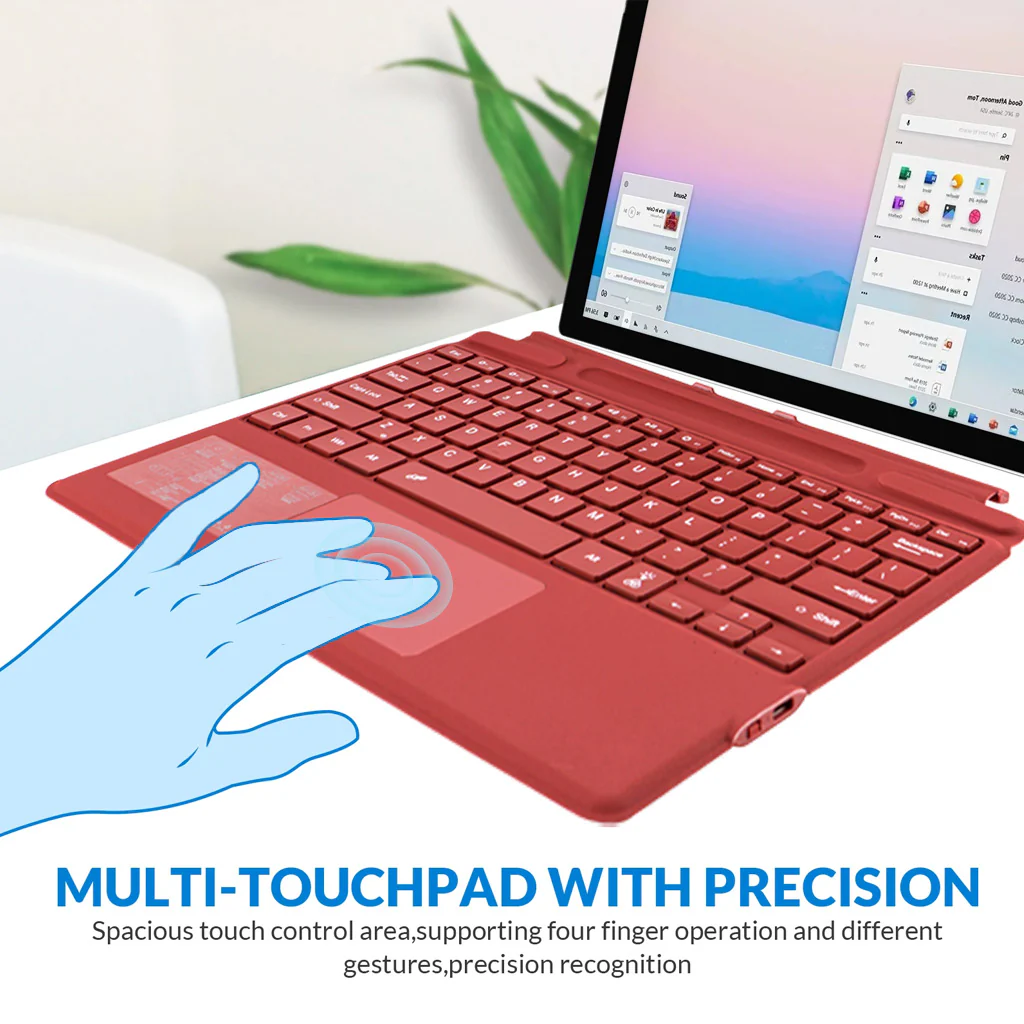
MULTI GESTURE TOUCHPAD: The magnetic keyboard supports all gestures trackpad with a left & right click. Smart touchpad allows you to use your tab without raising your hand like browsing the web, typing etc. It allows you to turn your Surface pro into a laptop.
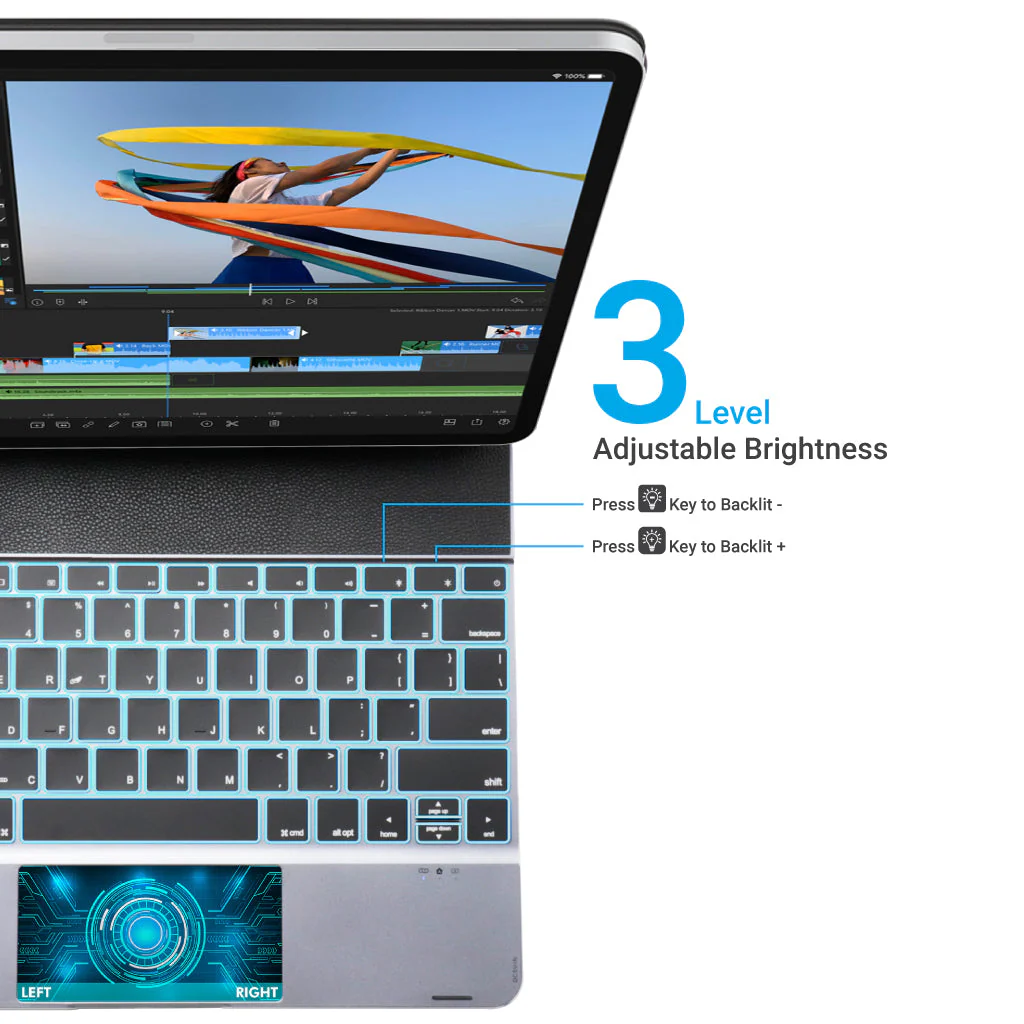
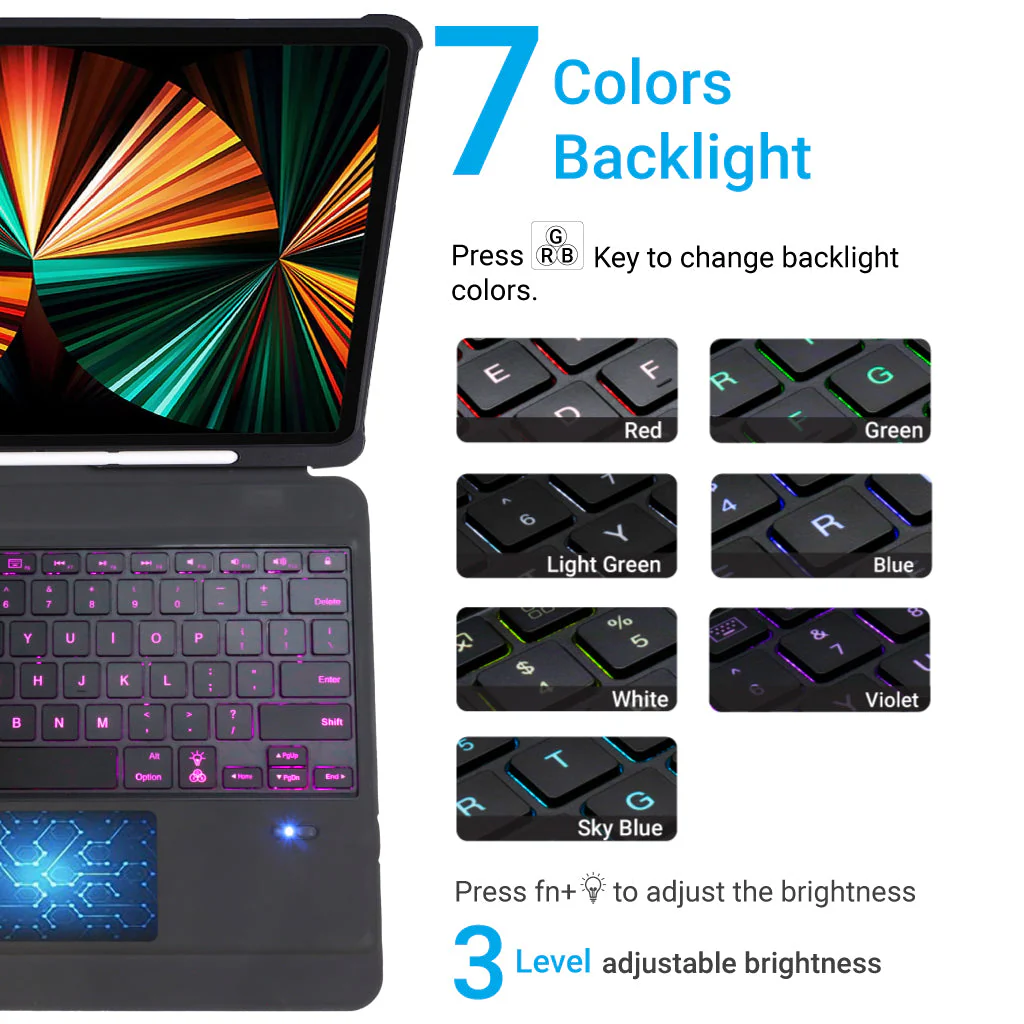
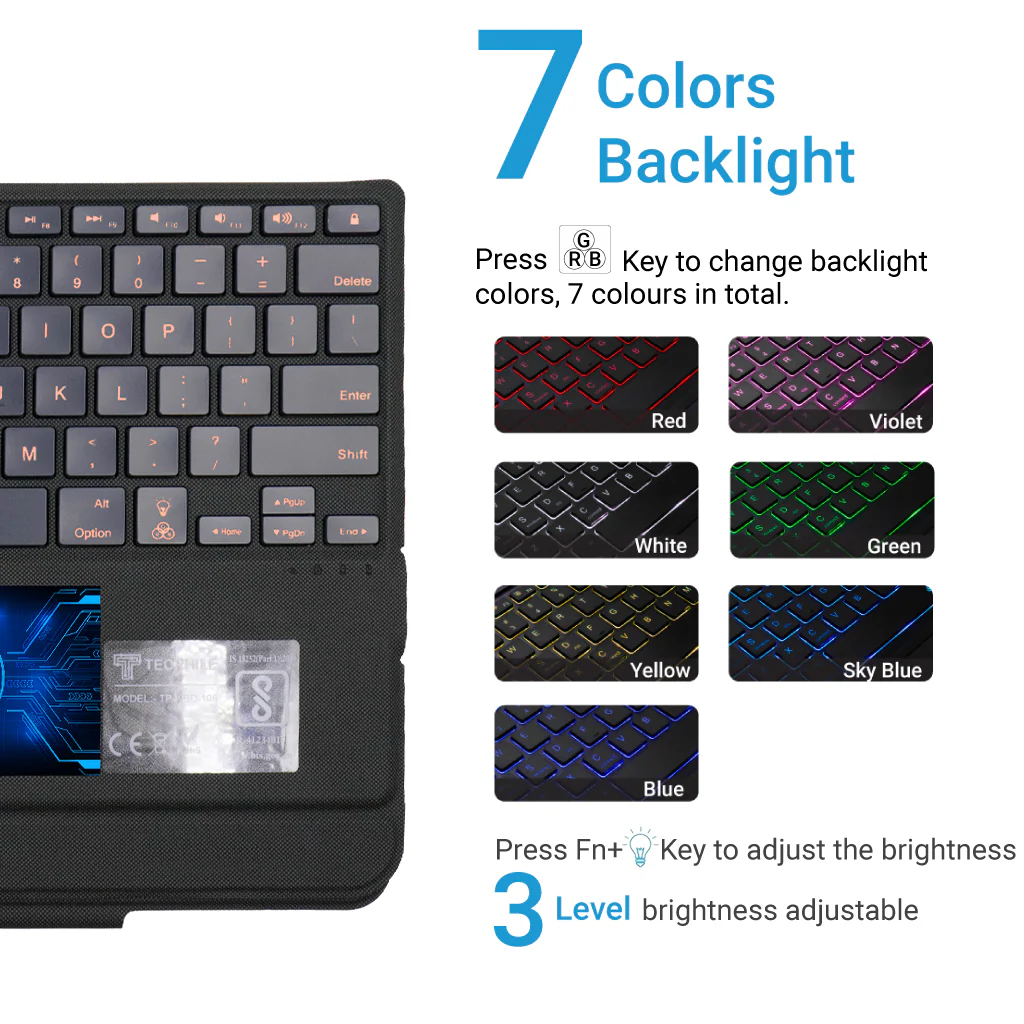
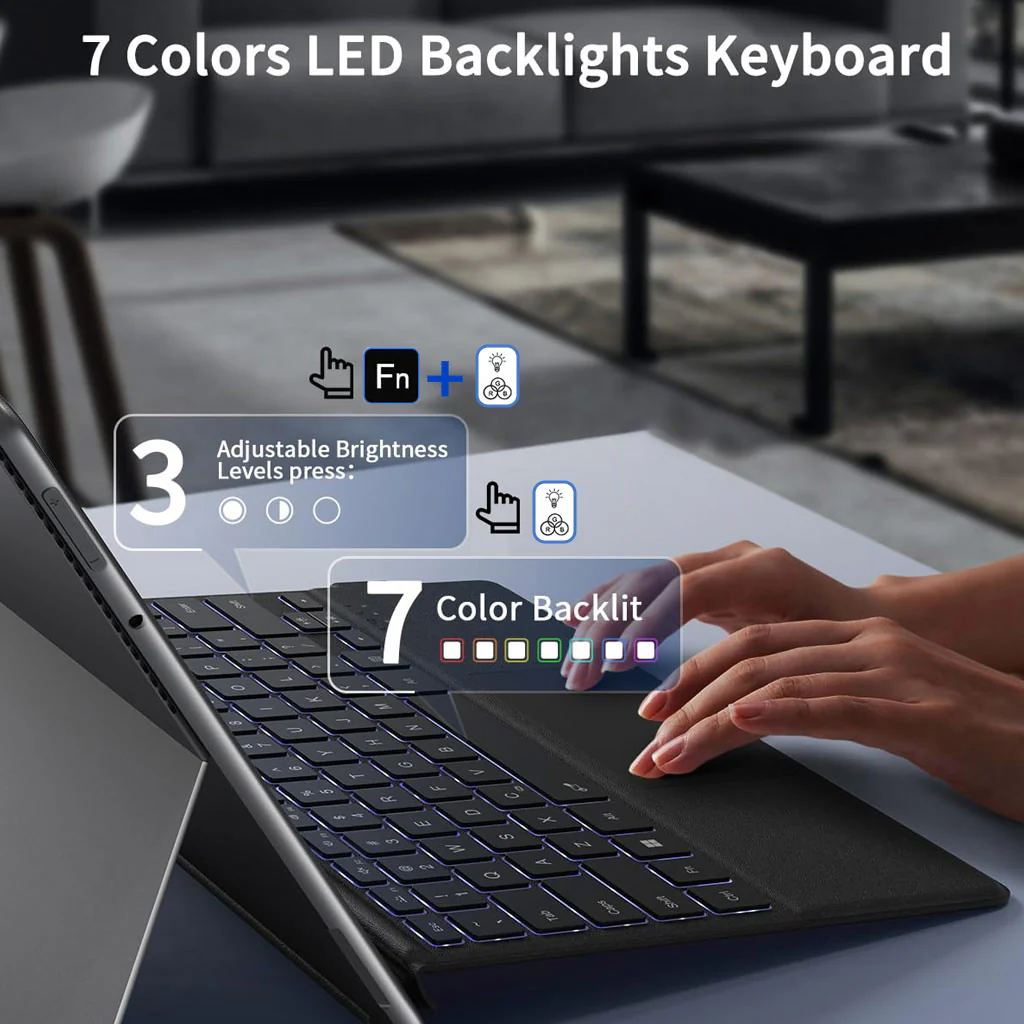
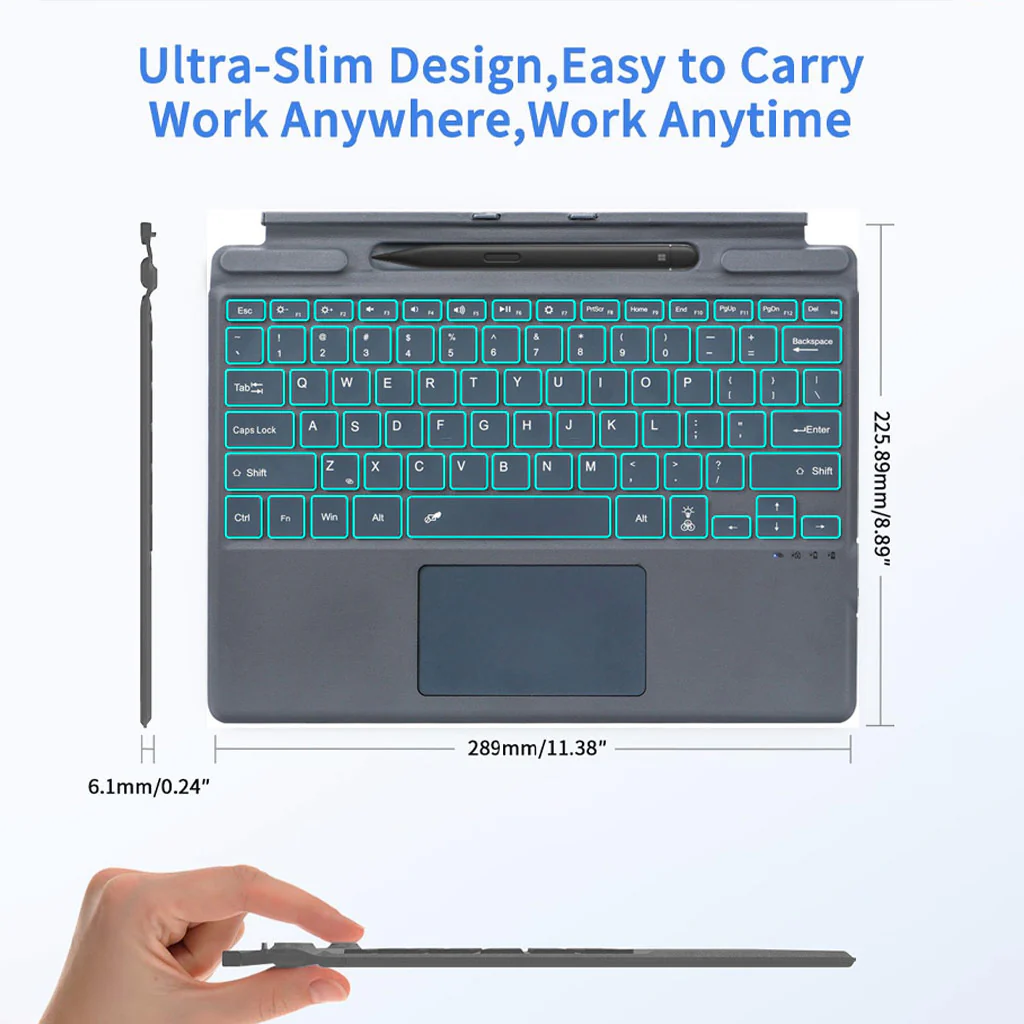
AMAZING 7 COLOR BACKLIT: With 7 color backlit and 3 adjustable brightness level, the keyboard makes it easy and comfortable typing in darkness. It will create a cool working environment. The backlit can be turned off for maximizing power usage.
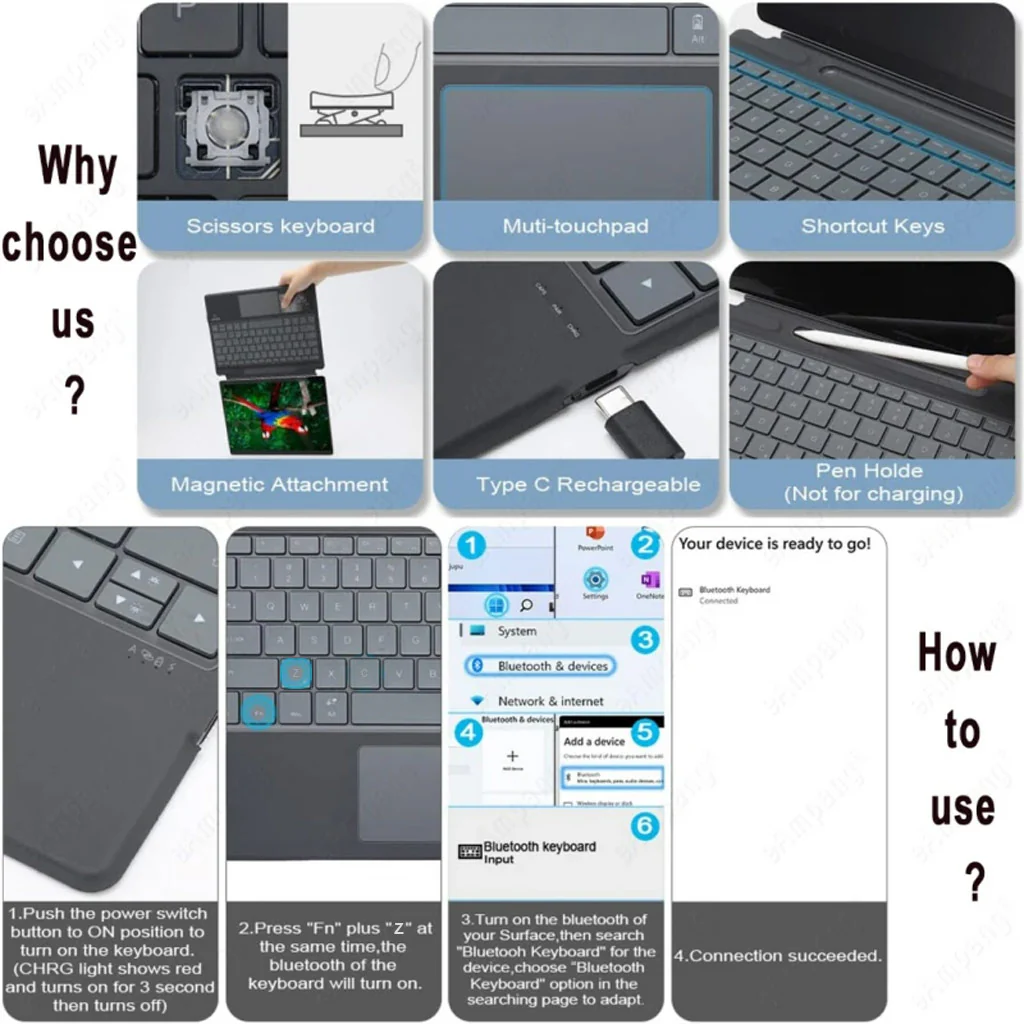
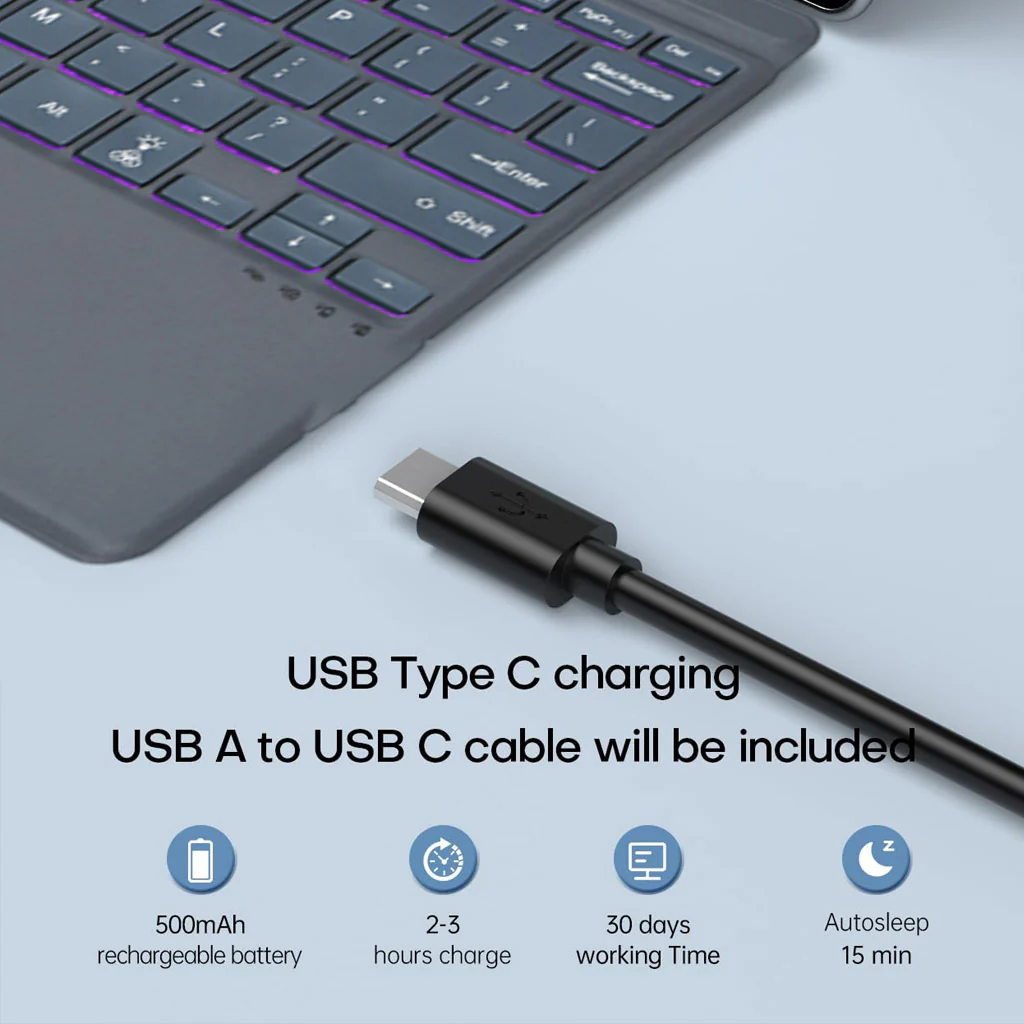
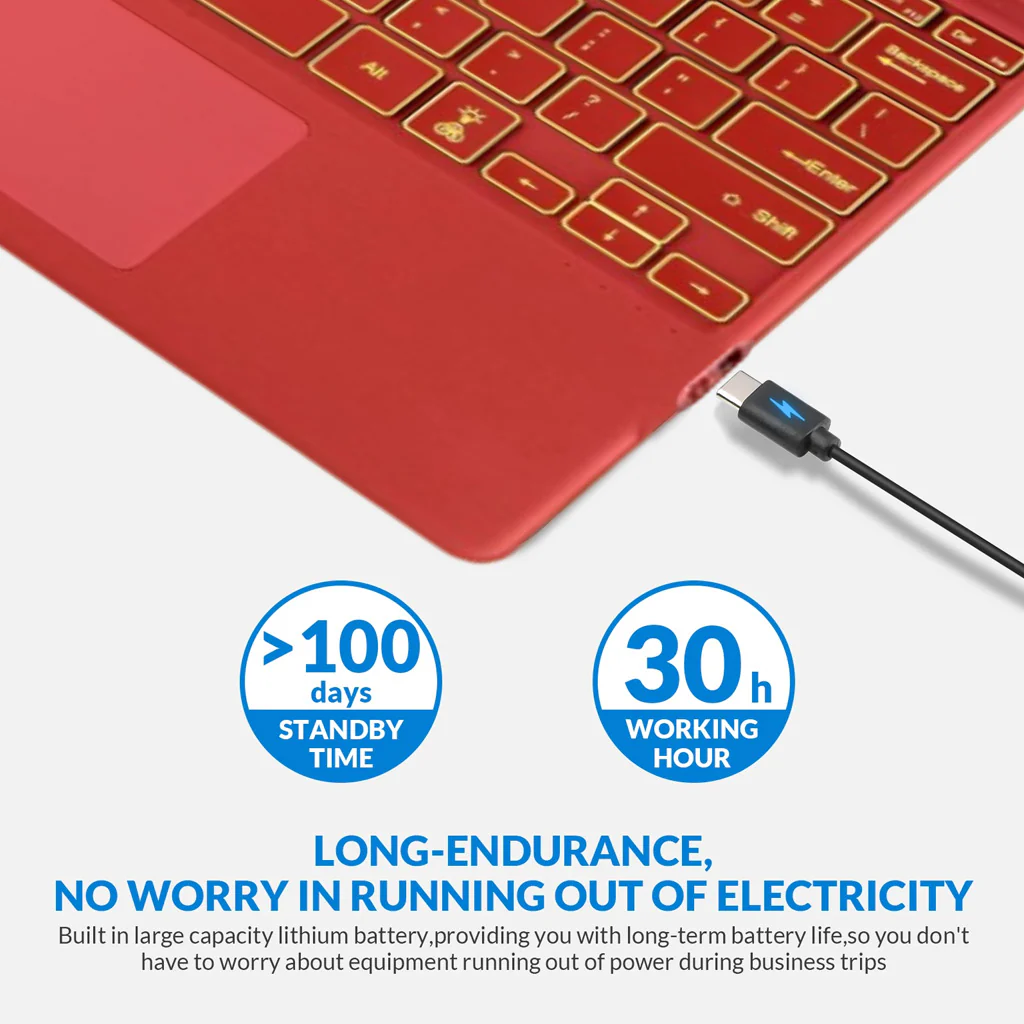
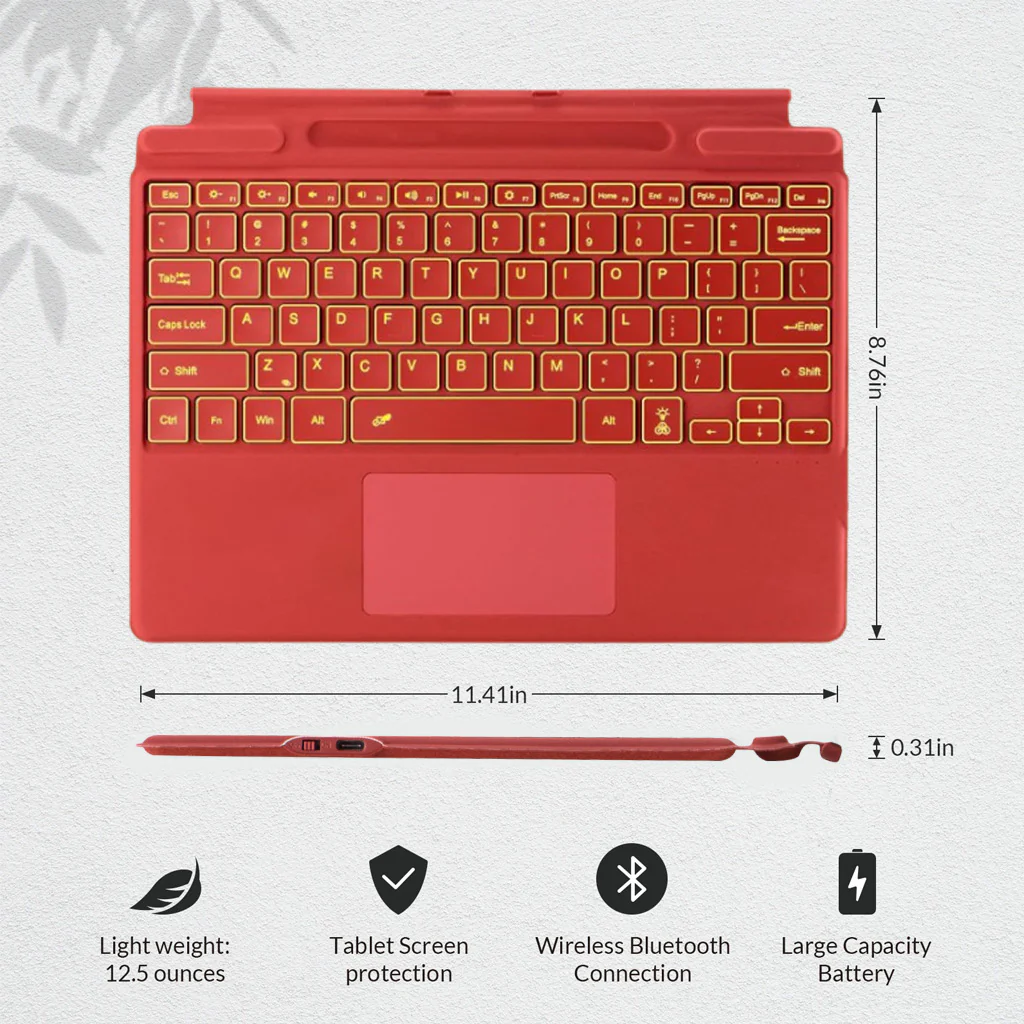
LONG LASTING BATTERY - It includes built-in 500mAh rechargeable battery that could extend the battery life, 2-3 hours full charge, work for more than 100 hours, stand by for 100 days.
TYPE C CHARGING PORT: You can charge your keyboard with USB C corded cable which is included in the package and you can use the keyboard for a long time after one charge.
DISCLAIMER: Kindly charge the keyboard with a 5V/1 Amp power adapter only. It will improve the life span of your gear and its batteries.
HOW TO CONNECT
- Step 1: Before first use, we recommend charging the keyboard for a minimum of 4 to 6 hours.
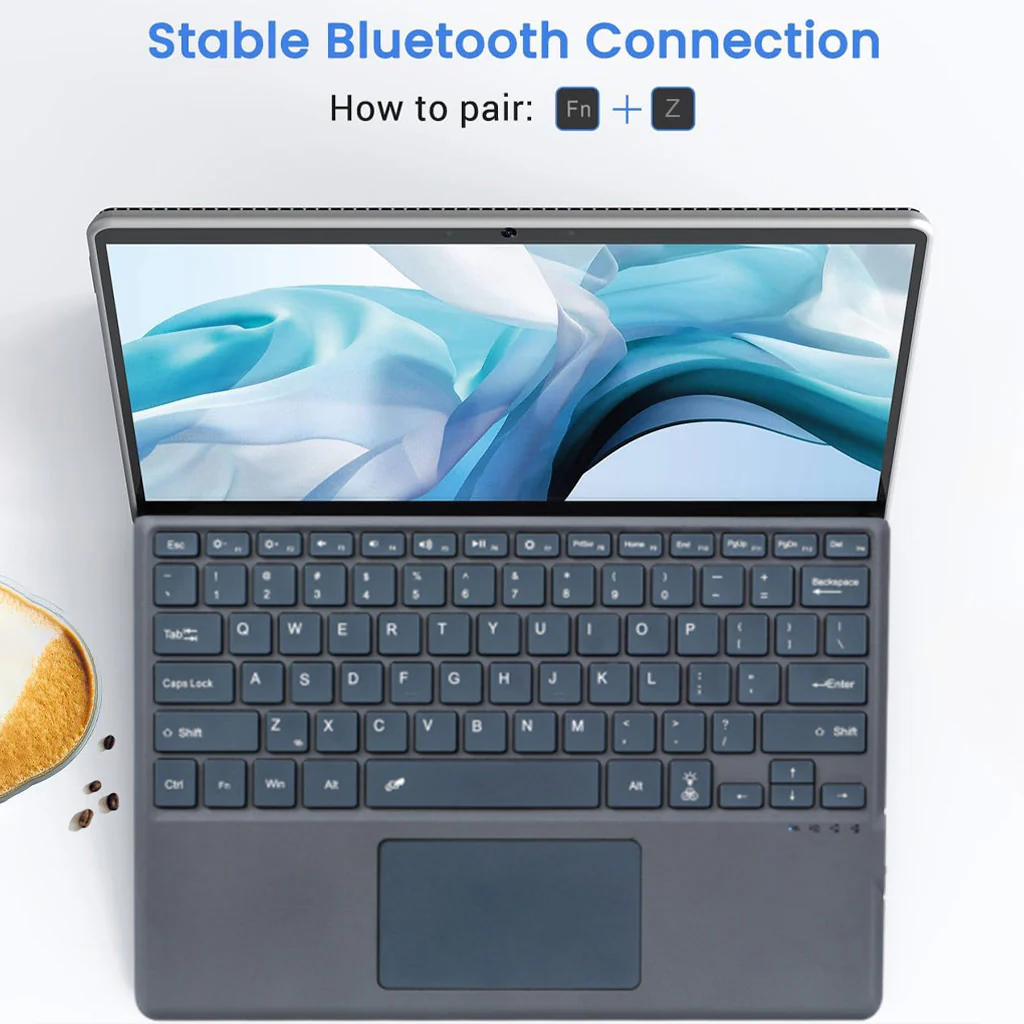
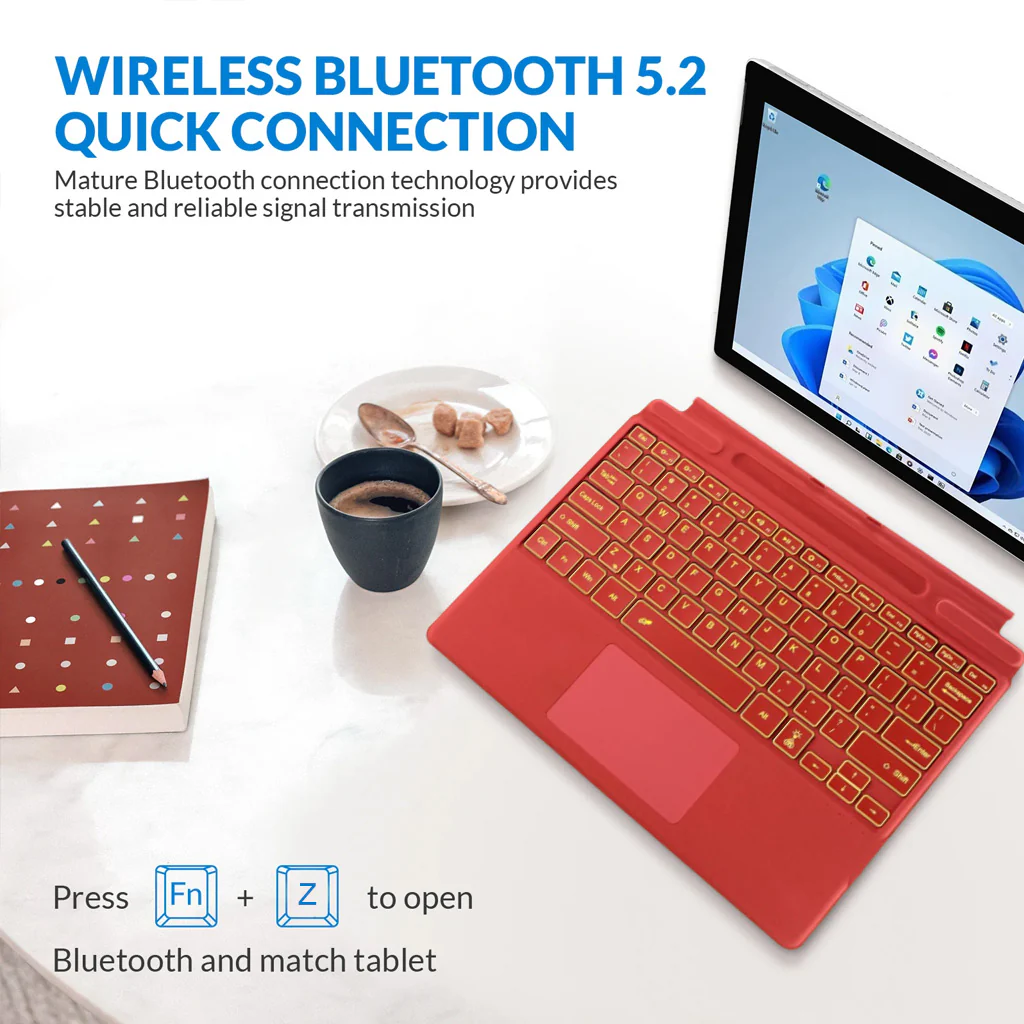
- Step 2: Please press ‘Fn + Z’ Keys to start pairing on the Keyboard. The Blue light will start blinking on the keyboard to show keyboard is in pairing mode.
- Step 3: On your source device, select the ‘Settings’ icon.
- Step 4: Navigate to ‘Bluetooth’ settings and turn on Bluetooth.
- Step 5: Select ‘Refresh’ from the settings bar. Your keyboard (Bluetooth Keyboard) will show in the ‘Available Devices’ section.
- Step 6: Select the keyboard and press Pair or hit enter. You are now connected!
Original: $36.48
-70%$36.48
$10.94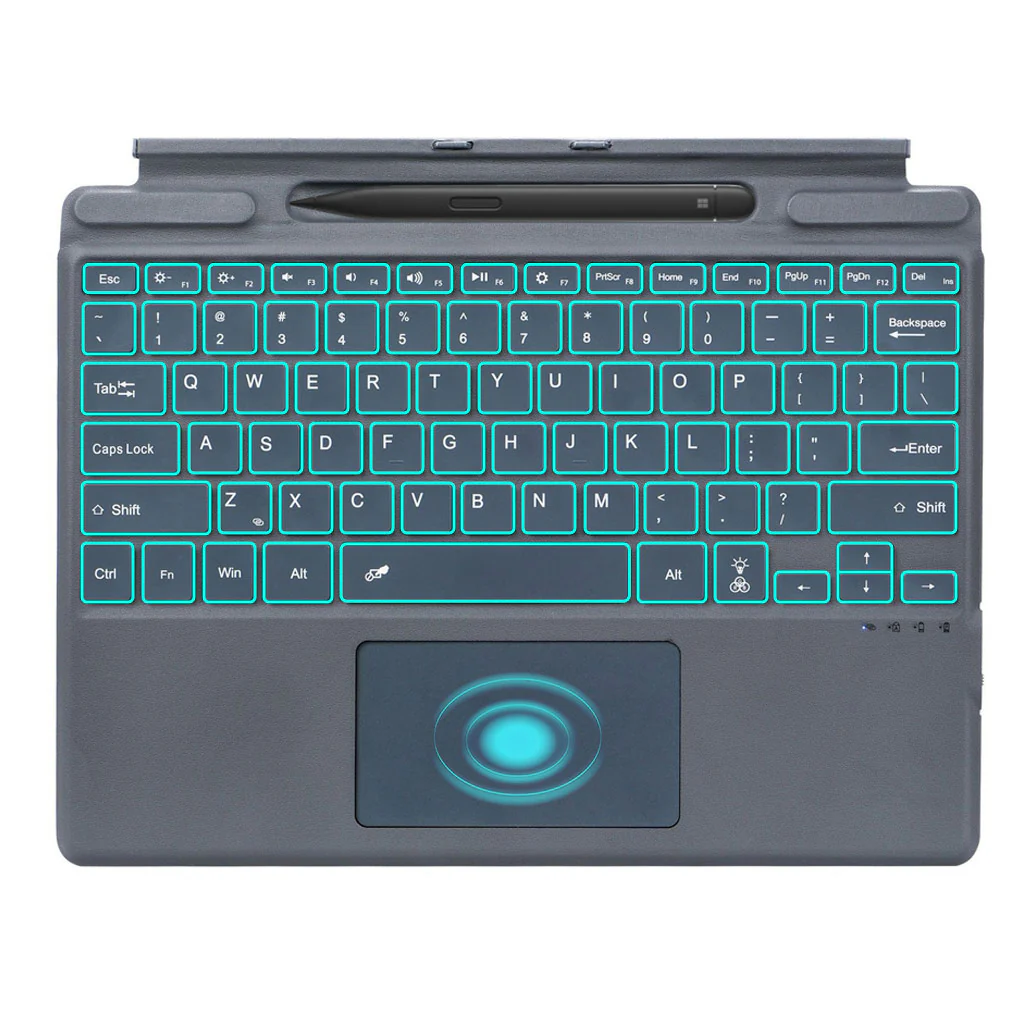
Description
COMPATIBILITY: This keyboard Case is specifically designed for Surface Pro 11 (2024), Surface Pro 10 (2024), Surface Pro 8 (2021) and Surface Pro X (2019) Surface Pro 9 (2022). Not compatible with any other devices. The keyboard is easy to use (Stylus Pen not Included). Note: This keyboard is not compatible with Surface pro 7/6/5/4/3/2/1, Surface Go3/2/1, Surface Laptops)
MULTI GESTURE TOUCHPAD: The magnetic keyboard supports all gestures trackpad with a left & right click. Smart touchpad allows you to use your tab without raising your hand like browsing the web, typing etc. It allows you to turn your Surface pro into a laptop.
AMAZING 7 COLOR BACKLIT: With 7 color backlit and 3 adjustable brightness level, the keyboard makes it easy and comfortable typing in darkness. It will create a cool working environment. The backlit can be turned off for maximizing power usage.
LONG LASTING BATTERY - It includes built-in 500mAh rechargeable battery that could extend the battery life, 2-3 hours full charge, work for more than 100 hours, stand by for 100 days.
TYPE C CHARGING PORT: You can charge your keyboard with USB C corded cable which is included in the package and you can use the keyboard for a long time after one charge.
DISCLAIMER: Kindly charge the keyboard with a 5V/1 Amp power adapter only. It will improve the life span of your gear and its batteries.
HOW TO CONNECT
- Step 1: Before first use, we recommend charging the keyboard for a minimum of 4 to 6 hours.
- Step 2: Please press ‘Fn + Z’ Keys to start pairing on the Keyboard. The Blue light will start blinking on the keyboard to show keyboard is in pairing mode.
- Step 3: On your source device, select the ‘Settings’ icon.
- Step 4: Navigate to ‘Bluetooth’ settings and turn on Bluetooth.
- Step 5: Select ‘Refresh’ from the settings bar. Your keyboard (Bluetooth Keyboard) will show in the ‘Available Devices’ section.
- Step 6: Select the keyboard and press Pair or hit enter. You are now connected!